Platform Reference
The Permit MCP Gateway admin dashboard at app.agent.security is the admin interface for configuring and managing your gateway deployment. From the dashboard you can create hosts, import MCP servers, manage user and agent permissions, and configure authentication settings.
Prerequisites
- A Permit.io account
- An organization-scoped API key from Permit.io Settings > API Keys to connect your organization
Navigation
The platform UI is organized around two navigation areas:
Header
- Organization selector — switch between connected Permit.io organizations. You can connect multiple organizations and switch between them at any time.
- Host selector — switch between hosts within the current organization. Also provides access to host-level Settings.
Sidebar
- Dashboard — host overview with the gateway MCP URL and client configuration snippets
- MCP Servers — import and manage upstream MCP servers
- Approvals — review and act on pending human-in-the-loop approval requests, view history, and configure notifications
- Agents — view and manage MCP clients that have connected through the gateway
- Humans — manage user access to MCP servers and view connected agents
- Settings — configure authentication methods, domain restrictions, and SSO
- Get Help — links to support resources
Multi-organization support
You can connect multiple Permit.io organizations to a single platform account. Each organization has its own set of hosts, MCP servers, users, and policies. Use the organization selector in the header to switch between them.
To connect a new organization:
- Open the organization selector in the header
- Select Connect Organization
- Provide an organization-scoped API key from Permit.io Settings > API Keys
Hosts management
A host is a named instance of Permit MCP Gateway with its own subdomain, policies, users, and sessions. Each host maps to a single Permit.io environment, and each environment can only be linked to one host.
Creating a host
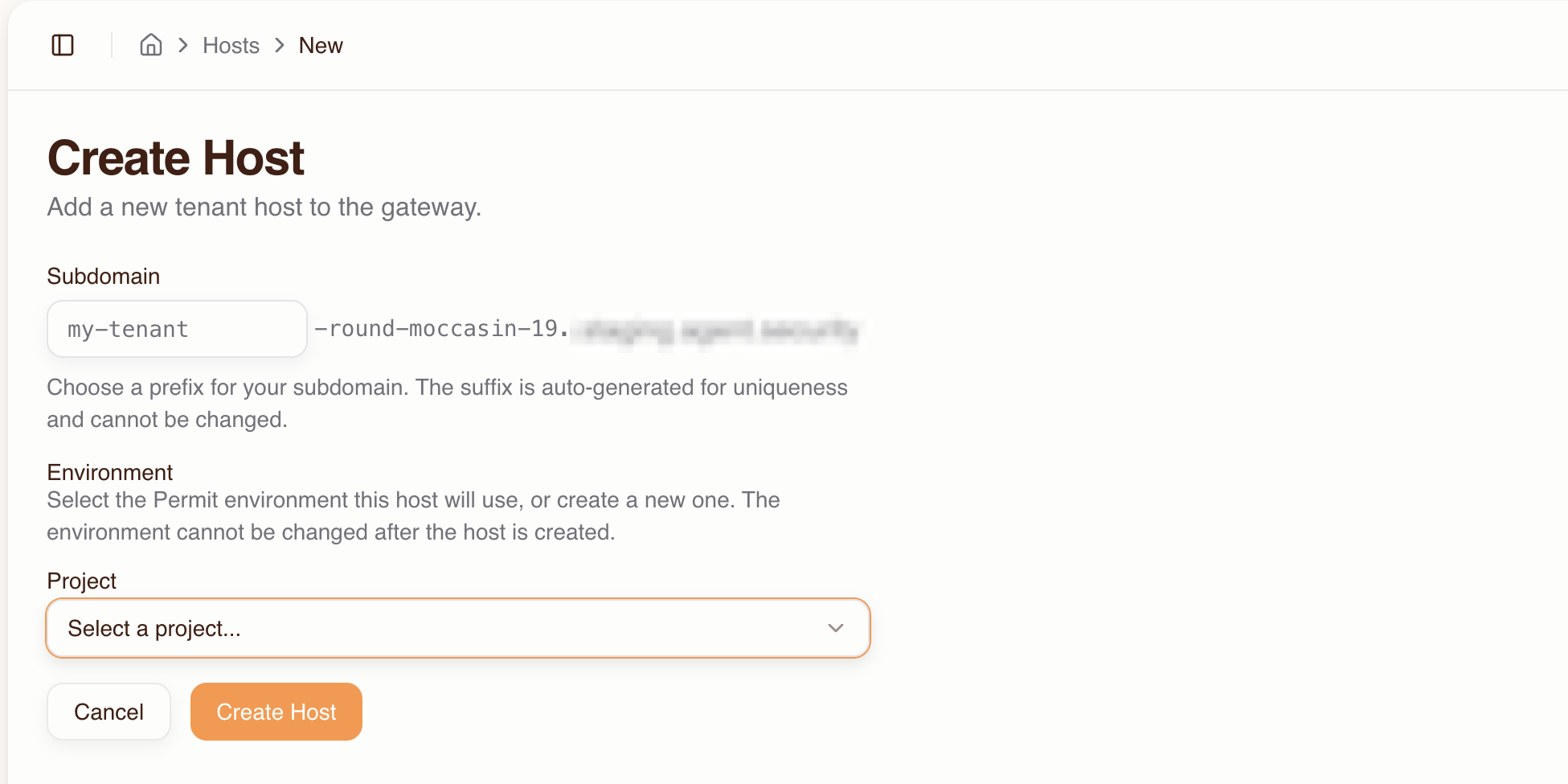
- Go to the Dashboard and click Create Host
- Fill in:
- Subdomain prefix — e.g.,
acme(a unique suffix likebrave-coral-37is auto-generated) - Project — select the Permit project that contains the environment you want to use
- Environment — select the Permit environment this host will use. The environment cannot be changed after the host is created.
- Subdomain prefix — e.g.,
- Click Create Host
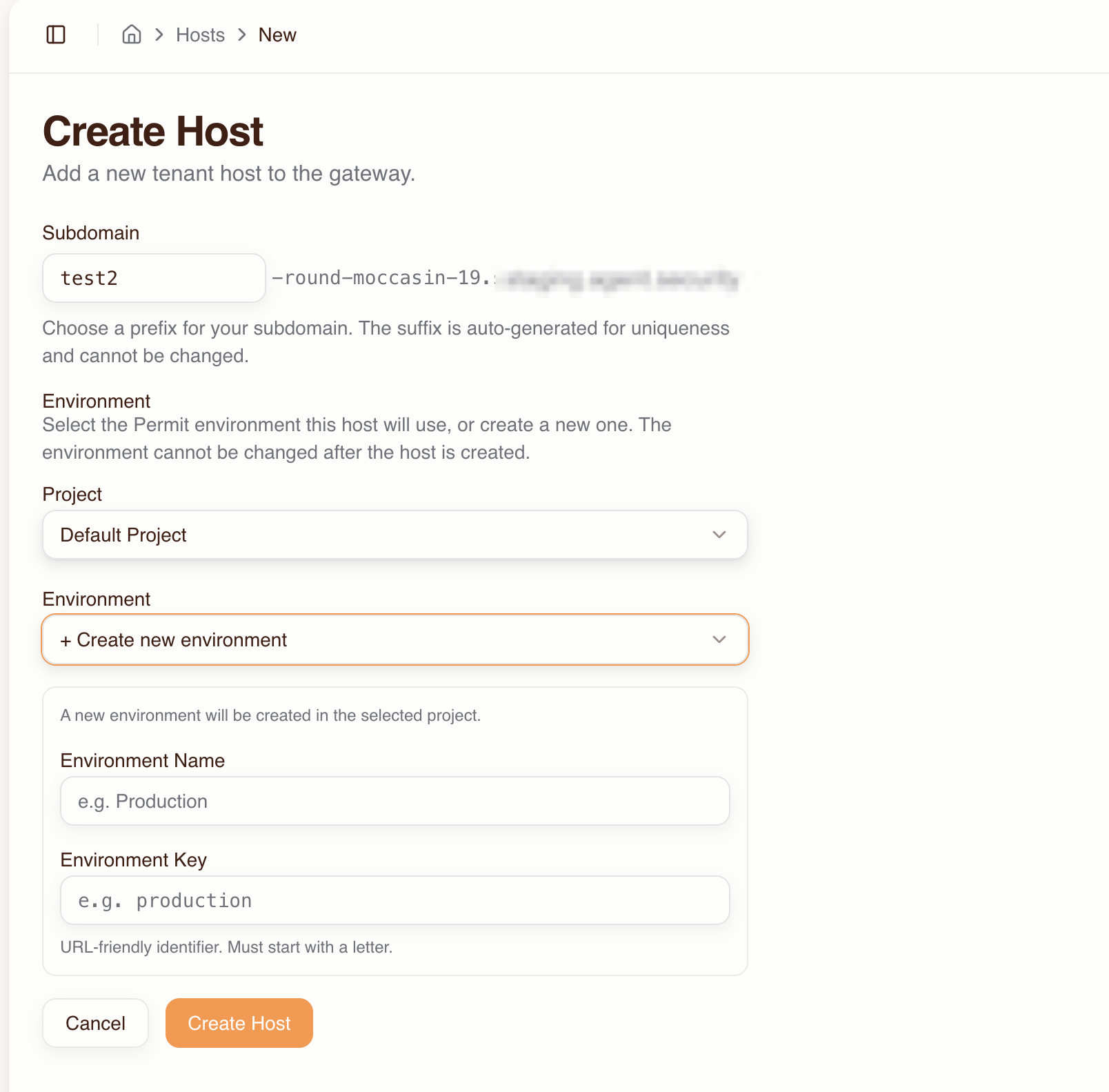
If you need a new Permit environment, select + Create new environment from the Environment dropdown and provide the environment name and key.
Your gateway is now live at:
https://<prefix>-<suffix>.agent.security/mcp
Viewing host details
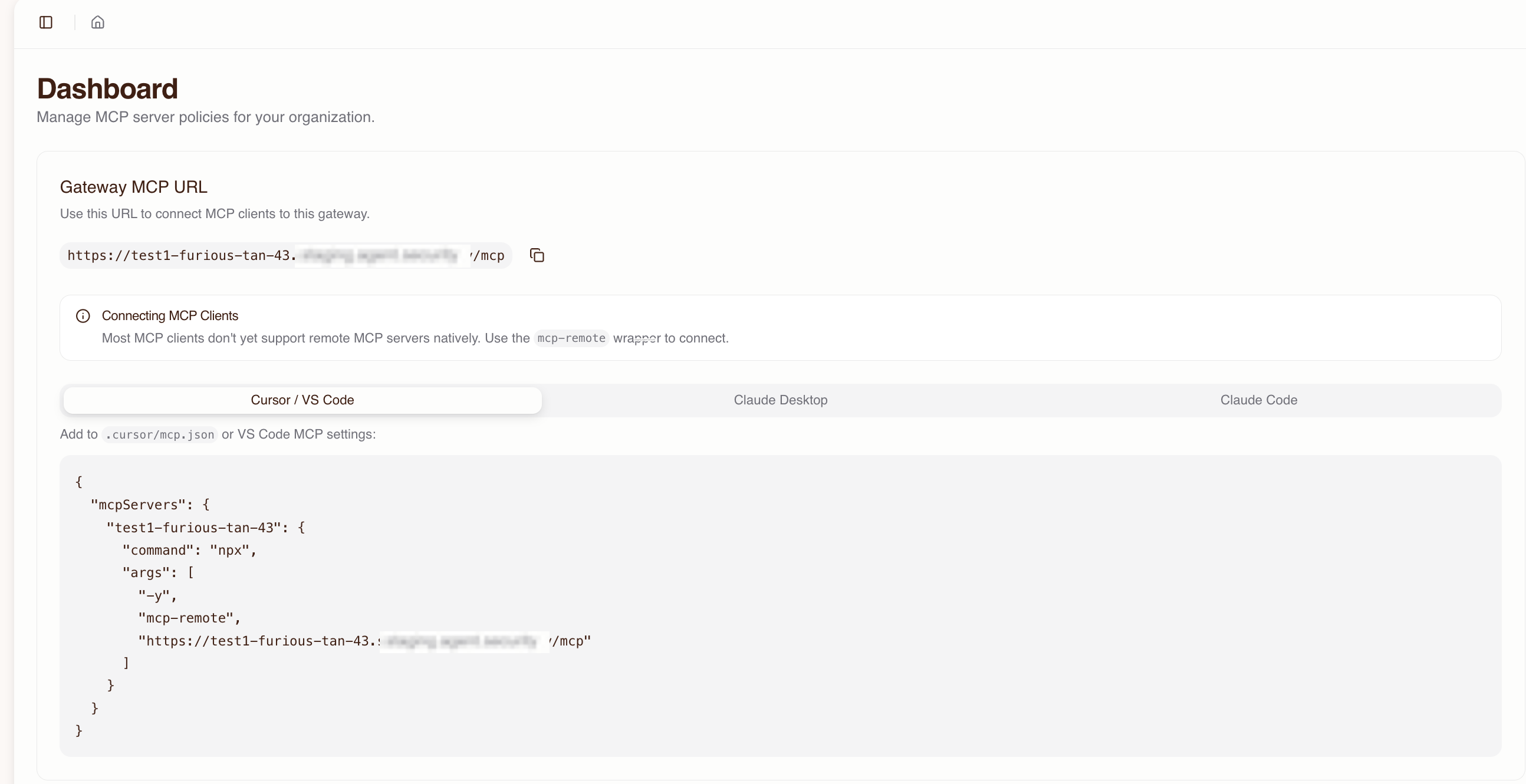
The host detail page (Dashboard) shows:
- The full MCP URL for the gateway
- Ready-to-copy configuration snippets for MCP clients (Cursor, VS Code, Claude Desktop, Claude Code)
- Connected MCP servers and their status
- Active users and sessions
Switching between hosts
Use the host selector dropdown in the header to switch between hosts in the current organization.
Deleting a host
To delete a host, go to the host's Settings page and select Delete Host. This removes the gateway subdomain, all associated sessions, and user access grants. The underlying Permit environment is not deleted.
Deleting a host is irreversible. All active sessions will be terminated and users will no longer be able to connect to the gateway at that subdomain.
MCP server management
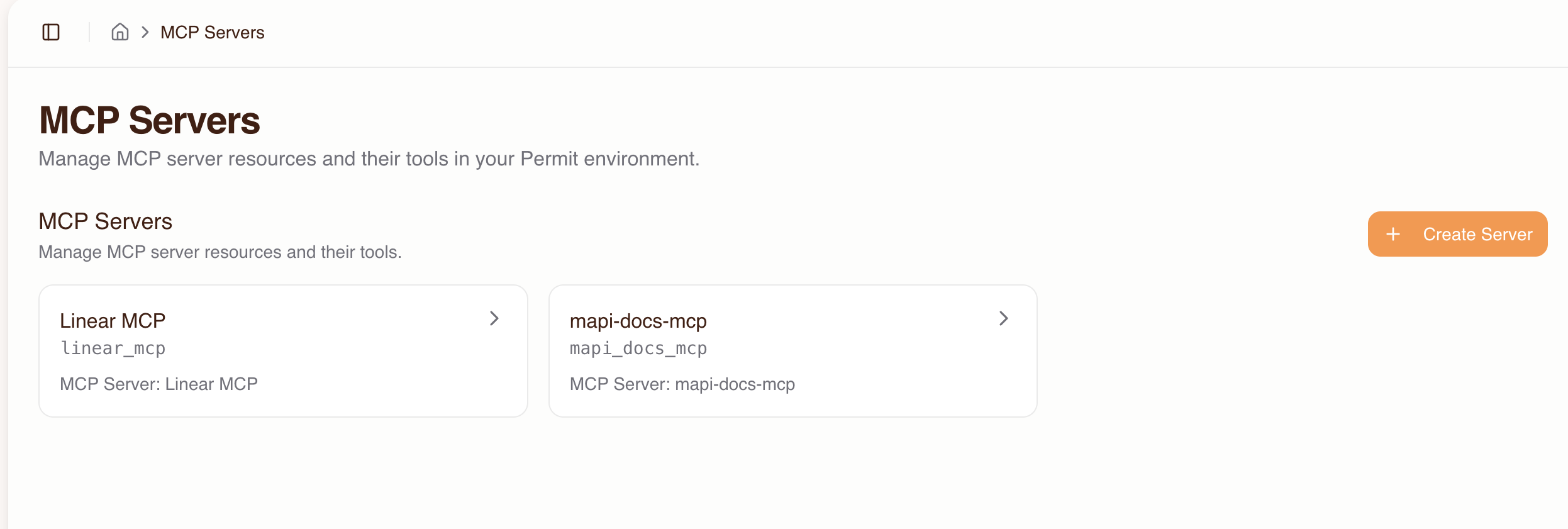
The MCP Servers page lists all imported MCP servers for the current host. From here you can import new servers, view server details, and manage tool configurations.
Import wizard
The import flow connects to an upstream MCP server, discovers its tools, and creates the corresponding resources and permissions in Permit.
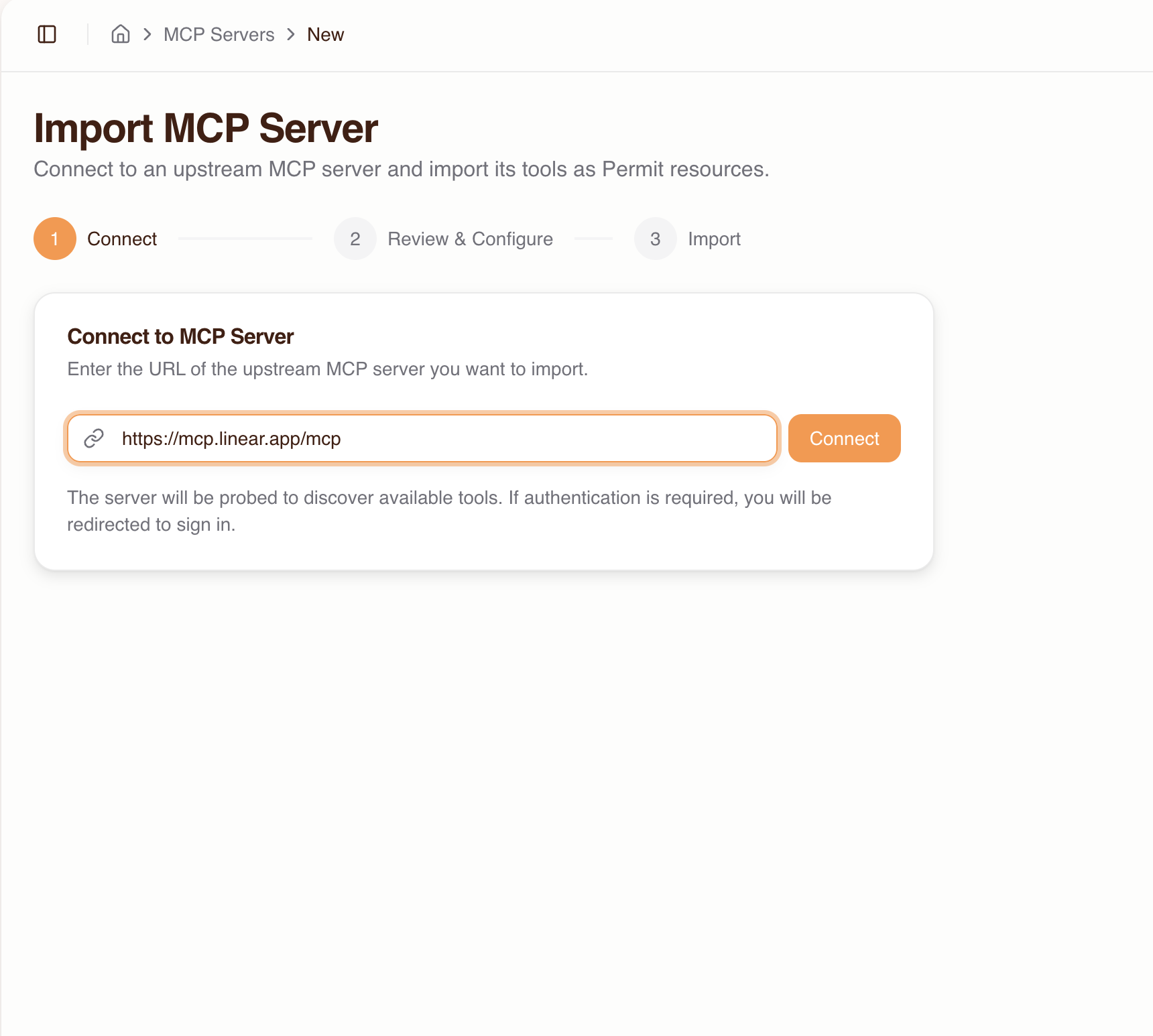
- Click Create Server on the MCP Servers page
- Enter the upstream MCP server URL (e.g.,
https://mcp.linear.app/mcp) and click Connect
-
If the server requires authentication, you'll be redirected to sign in with the upstream provider. If the provider doesn't support automatic client registration, you'll need to enter OAuth credentials (Client ID / Secret) manually.
-
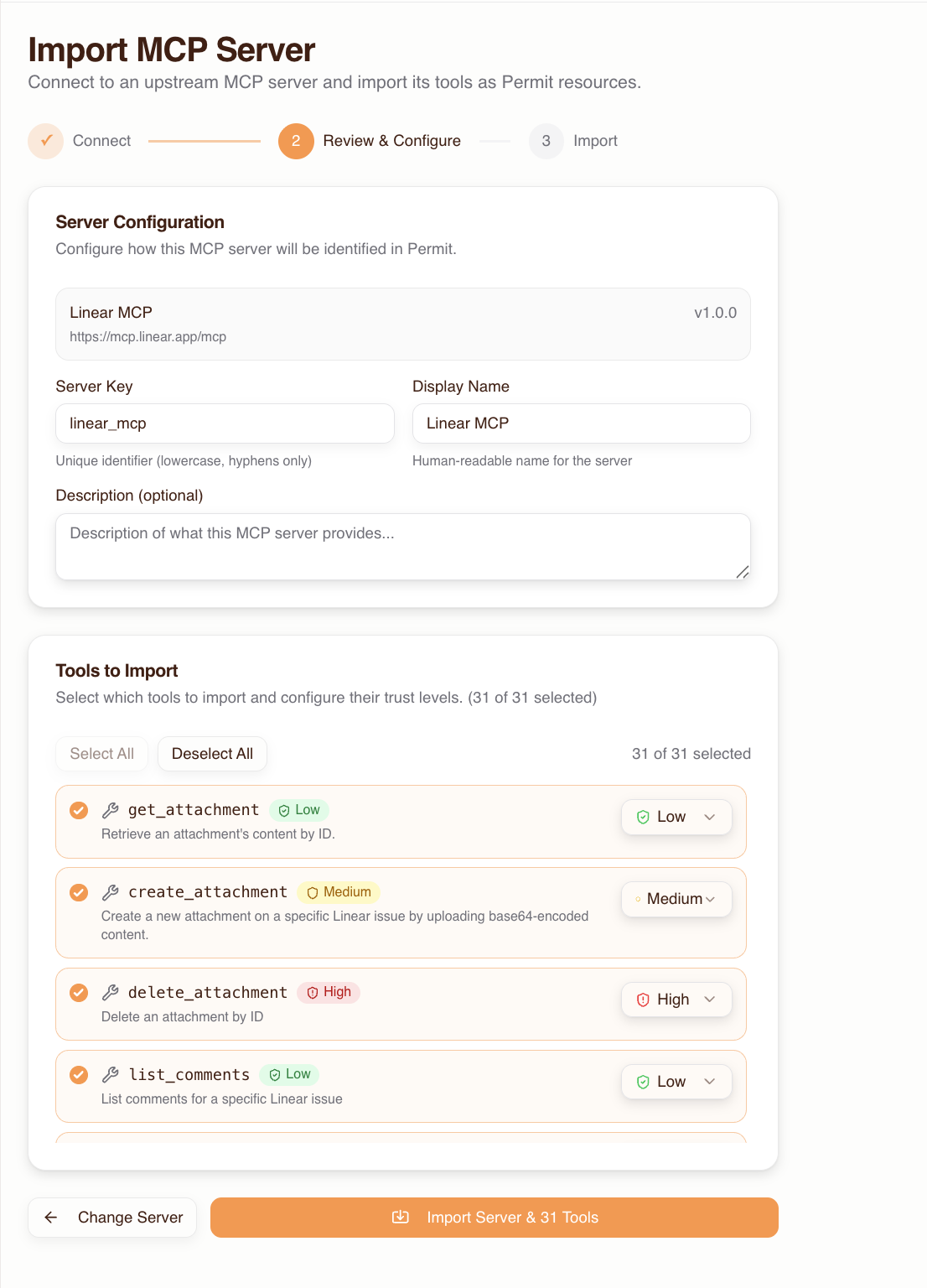
Review the discovered tools:
- Each tool is auto-classified with a trust level based on its name pattern (see trust level reference)
- You can override the trust level per tool and enable or disable individual tools
-
Click Import
Tool auto-discovery and trust level classification
During import, the gateway discovers all tools exposed by the upstream MCP server and automatically classifies each into a trust level:
| Trust level | Classification | Naming patterns |
|---|---|---|
| Low | Read-only operations (default) | Tools not matching medium or high patterns |
| Medium | Write operations | create, write, update, set, modify, edit, put, post, insert, add, send, execute, run, invoke, submit, push, publish, deploy, apply, patch |
| High | Destructive operations | delete, remove, destroy, drop, purge, erase, truncate, terminate, kill, revoke |
Trust levels are hierarchical: high includes all medium and low permissions, medium includes all low permissions.
Overriding trust levels
You can override the auto-classified trust level for any individual tool, both during import and after:
- Go to the MCP server's detail page
- Find the tool in the tool list
- Change its trust level using the dropdown
This is useful when a tool's name doesn't accurately reflect its risk — for example, a tool named get_sensitive_data might warrant a higher trust level than the default "low."
Server detail view
The server detail page shows:
- Tool list — all discovered tools with their trust levels and enabled/disabled status
- Connected users — which humans have been granted access to this server
- Server status — connection health and upstream URL
- Server name and description — editable metadata
From the detail page you can also:
- Add or remove tools
- Change trust levels per tool
- Update the server name and description
- Remove the server entirely
Human management
The Humans page lists all users who have been granted access or have signed in to the gateway. Admins use this page to control which MCP servers each user can access and at what trust level.
Granting access to MCP servers
By default, users have no permissions to any MCP server. An admin must grant access before a user can complete the consent flow.
- Go to the Humans page
- Select a user (or add a new user by email before they've signed in — they will be pre-authorized)
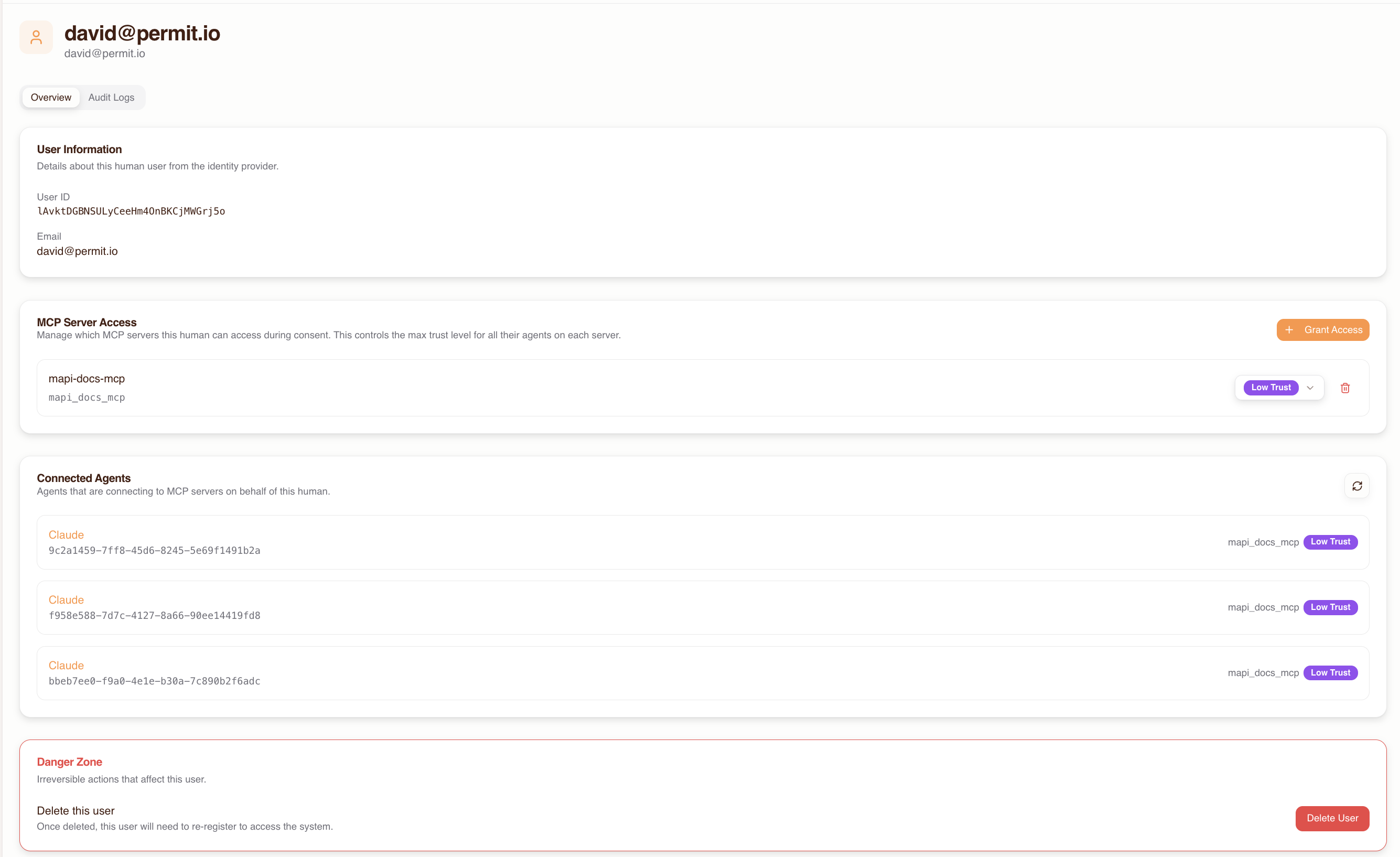
- Click Grant Access
- Choose which MCP servers the user can connect to
- Set a max trust level for each server — this acts as a ceiling on what the user can grant their agent during consent
Setting max trust levels
The max trust level you assign to a user for a given MCP server is a ceiling. During the consent flow, the user can only grant their agent permissions up to this level. For example, if you set the max trust level to "medium," the user cannot grant their agent "high" trust for that server.
Revoking access
To revoke a user's access to an MCP server:
- Go to the Humans page and select the user
- Find the MCP server in their access list
- Click Revoke Access
Revoking access terminates any active sessions for that user on the affected MCP server. The user's agent will receive permission denied errors on subsequent tool calls.
Viewing a human's connected agents
The human detail page shows all agents (MCP clients) that have connected on behalf of that user, including:
- Agent name and type (e.g., Cursor, Claude Desktop, VS Code)
- Which MCP servers the agent has access to
- The trust level granted to the agent for each server
- Recent activity and tool call history
Agent management
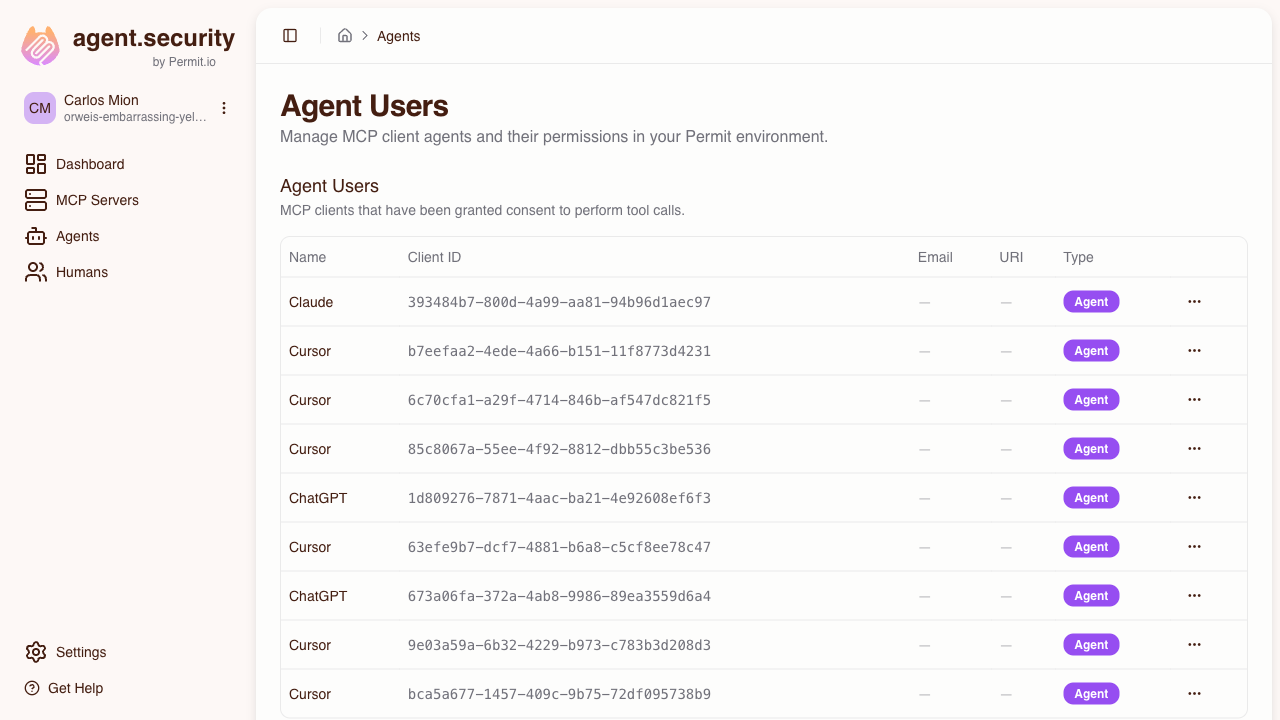
The Agents page lists all MCP clients that have connected through the gateway. Agents appear automatically after a user completes the consent flow.
Understanding agent metadata
Each agent entry shows:
- Agent identifier — the MCP client that connected (e.g., Cursor, Claude Desktop)
- Associated user — the human who authorized this agent
- MCP server access — which servers the agent can reach and at what trust level
- Activity log — recent tool calls with allowed/denied status
Modifying agent trust levels
To change an agent's trust level for a specific MCP server:
- Go to the Agents page and select the agent
- Find the MCP server in the agent's access list
- Adjust the trust level
The change takes effect immediately — the agent's next tool call will be evaluated against the new trust level.
Revoking agent access
To revoke an agent's access to an MCP server:
- Go to the Agents page and select the agent
- Find the MCP server and click Revoke Access
The agent will receive permission denied errors on subsequent tool calls to that server. The user can re-connect by going through the consent flow again.
Settings
Host settings are accessible via the host selector dropdown in the header. Settings control how users authenticate when connecting through the consent flow.
Dynamic MCPs
By default, users can only connect to MCP servers that an admin has imported. The Allow Dynamic MCPs toggle lets you change this — when enabled, users can also enter any MCP server URL during the consent flow.
To enable:
- Go to the host's Settings (via the host selector dropdown in the header)
- Toggle Allow Dynamic MCPs on
When enabled, users see an option to enter a custom MCP server URL during the consent flow, in addition to the admin-provisioned server list. Users manage their own trust level for dynamic servers. All tool calls are still authorized via Permit and logged in the audit trail.
Dynamic MCPs bypass the admin server allow-list. Only enable this if your organization is comfortable with users connecting to arbitrary MCP servers. The toggle can be disabled at any time.
Authentication methods
Each host can be configured with its own set of authentication methods. By default, email/password authentication is enabled. For detailed setup instructions with IdP-specific examples, callback URLs, and configuration rules, see the Authentication Methods Reference.
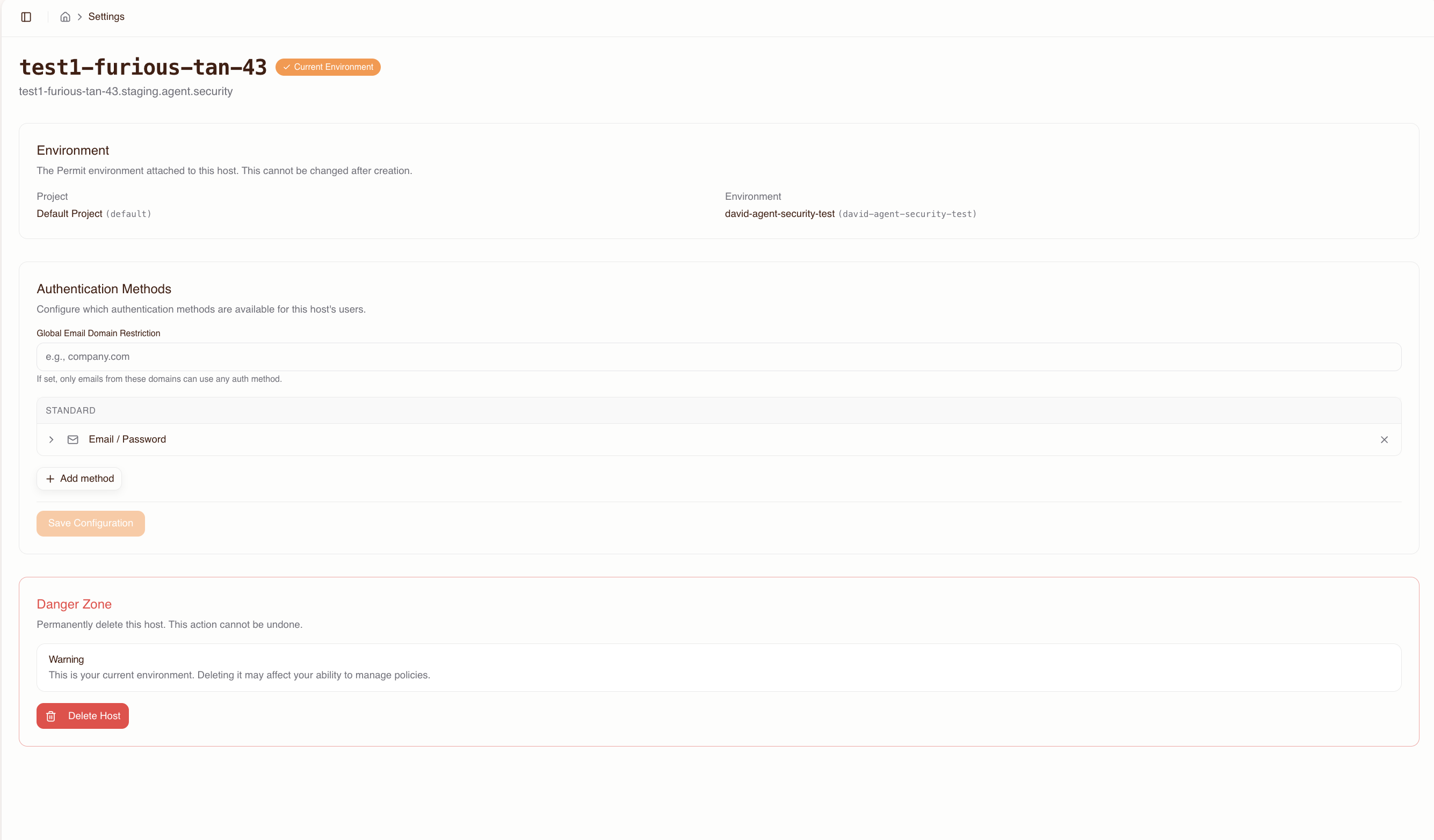
Available methods
| Method | Description | Configuration required |
|---|---|---|
| Email / Password | Database-backed credentials | None (enabled by default) |
| Email OTP | One-time passcode sent via email (6-digit code, 5-minute expiry) | None |
| Passkeys | WebAuthn/FIDO2 credential management | None |
| Google OAuth | Sign in with Google | Google OAuth client ID and secret |
| GitHub OAuth | Sign in with GitHub | GitHub OAuth client ID and secret |
| Microsoft OAuth | Sign in with Microsoft (supports multi-tenant via tenant ID) | Microsoft OAuth client ID and secret |
| SAML 2.0 SSO | Enterprise SSO via SAML | IdP entry point URL, entity ID, X.509 signing certificate |
| OIDC SSO | Enterprise SSO via OpenID Connect | Issuer URL, client ID, client secret |
Domain restrictions
Each authentication method supports allowed email domain restrictions. For example, you can limit Google OAuth to @acme.com addresses only.
Domain restrictions can be configured:
- Globally — applied to all authentication methods
- Per method — specific to a single authentication method
SAML / OIDC SSO setup
SAML 2.0
When configuring SAML SSO, provide your identity provider with the following service provider (SP) details from the host settings page:
- SP Entity ID:
https://{subdomain}.agent.security/api/auth/sso/saml2/sp/metadata - ACS URL:
https://{subdomain}.agent.security/api/auth/sso/saml2/callback/sso-{subdomain} - SP Metadata XML: available for download from the host settings page
OIDC
When configuring OIDC SSO, you'll need:
- Issuer URL — your identity provider's OIDC issuer endpoint
- Client ID — registered with your identity provider
- Client Secret — from your identity provider
Force-redirect domains
For SSO methods, you can configure force-redirect domains — users with matching email domains are automatically redirected to the SSO provider instead of seeing the login screen. This streamlines the sign-in experience for enterprise users.