Getting Started with Permit MCP Gateway
Permit MCP Gateway is a managed proxy between MCP clients (Cursor, Claude Desktop, VS Code, Claude Code) and upstream MCP servers. It authenticates users, enforces per-tool permissions through trust levels, and logs every tool call for audit.
Quick Start: First Value in 5 Minutes
This fast path gets you from zero to one successful allowed call, one denied call, and one visible audit event.
- A live gateway URL
- One MCP server imported with auto-classified tools
- One user with granted access
- An MCP client connected through the gateway
- Proof that authorization works: an allowed call and a denied call
- Audit log entries you can inspect
Steps:
- Sign up at app.agent.security and connect your Permit.io organization with an organization-scoped API key
- Create a host — go to Dashboard → Create Host. Pick a subdomain, project, and environment. Your gateway URL is now live.
- Import one MCP server — go to MCP Servers → Create Server. Enter an upstream URL (e.g.,
https://mcp.linear.app/mcp). Review the auto-classified tools and click Import. - Grant yourself access — go to Humans, find your user (or add yourself by email), and grant access to the imported server at medium trust.
- Connect your MCP client — add the gateway URL to your client config (see client snippets below). When prompted, sign in and complete the consent flow at medium trust.
- Test an allowed call — ask your AI agent to perform a read or write action (e.g., list issues, create an issue). It should succeed.
- Test a denied call — ask your agent to perform a destructive action (e.g., delete something). It should be denied with a permission error.
- Check the audit log — go to the Agents or Humans page in app.agent.security and verify that both the allowed and denied calls appear in the activity log.
If everything worked, your gateway is enforcing policy and logging decisions. Continue below for the detailed setup walkthrough.
- No MCP servers in consent screen? You skipped step 4 — grant yourself access on the Humans page first.
- Agent bypasses the gateway? Remove any direct MCP server connection from your client config. Only the gateway URL should remain.
- OAuth redirect fails? The upstream MCP server may require manual OAuth credentials. Re-import with Client ID / Secret.
- Can't find audit logs? Check both app.agent.security (Agent/Human detail pages) and app.permit.io (Audit Log in the linked environment).
Prerequisites
- A Permit.io account
- An organization-scoped API key from Permit.io Settings > API Keys — you'll use this once in Step 1 to connect your organization
1. Sign up and connect your organization
- Go to app.agent.security
- Create an account
- Connect your Permit.io organization:
- Go to Permit.io Settings > API Keys
- Create an organization-scoped API key
- Paste the key into the Permit MCP Gateway platform
Once connected, your organization name appears in the sidebar. You can connect multiple organizations and switch between them from the sidebar menu.
2. Create a host
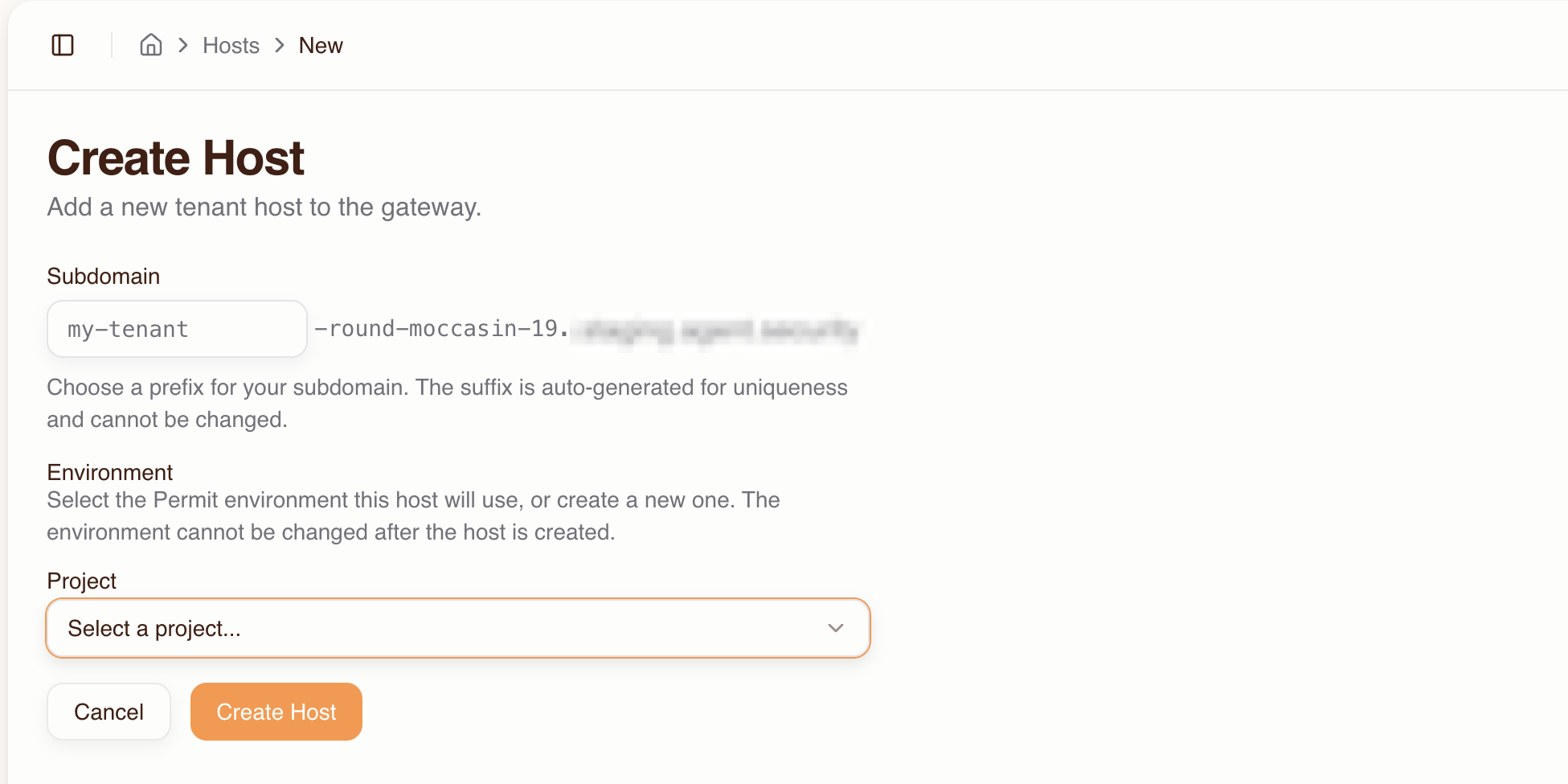
A host is a named instance of the Permit MCP Gateway, with its own subdomain, policies, users, and sessions. Each host maps to a single Permit.io environment, and each environment can only be linked to one host.
- Go to the Dashboard and select Hosts, then click Create Host
- Fill in:
- Subdomain — choose a prefix (e.g.,
my-tenant). A unique suffix likebrave-coral-37is auto-generated. - Project — select the Permit project that contains the environment you want to use.
- Environment — select the Permit environment this host will use. The environment cannot be changed after the host is created.
- Subdomain — choose a prefix (e.g.,
- Click Create Host
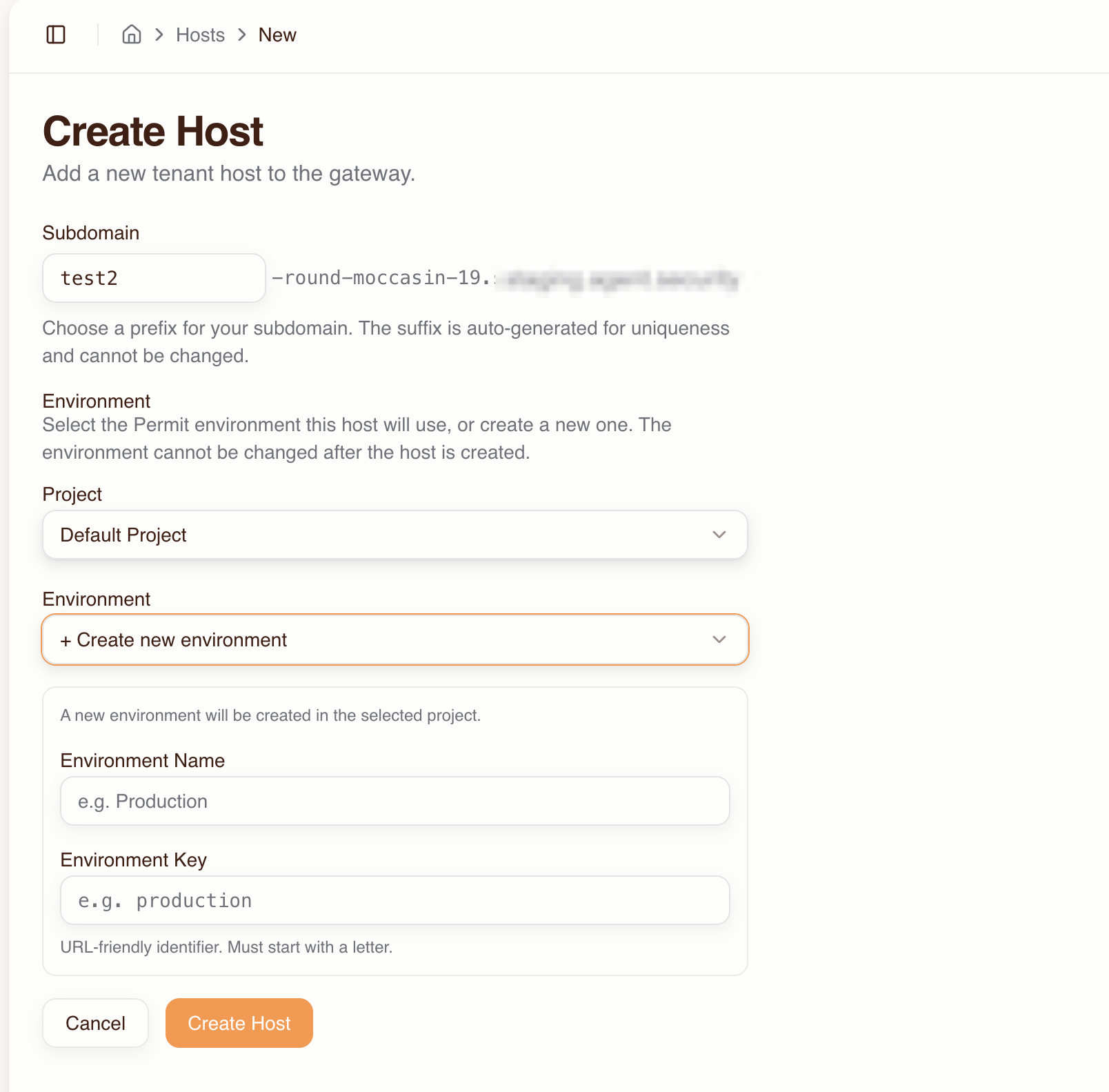
If you need a new Permit environment, select + Create new environment from the Environment dropdown and fill in the environment name and key.
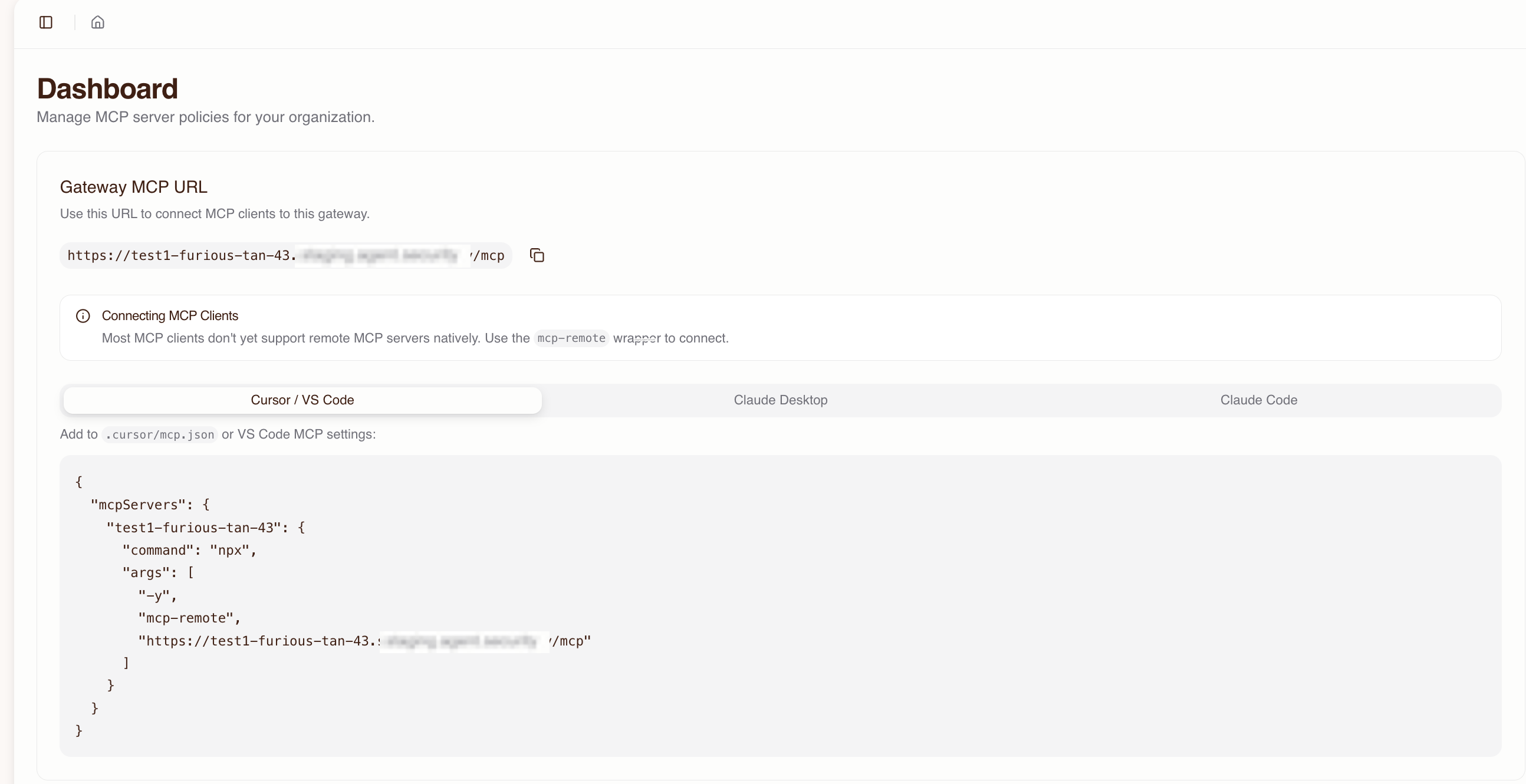
Your gateway is now live at:
https://acme-brave-coral-37.agent.security/mcp
The host detail page shows the full MCP URL and ready-to-copy configuration snippets for MCP clients.
Expected result: You have a live gateway URL. No one can access it yet because no MCP servers are imported and no users have been granted access.
3. Import MCP servers
The import flow connects to an upstream MCP server, discovers its tools, and creates the corresponding resources and permissions in Permit.
- Go to MCP Servers and click Create Server
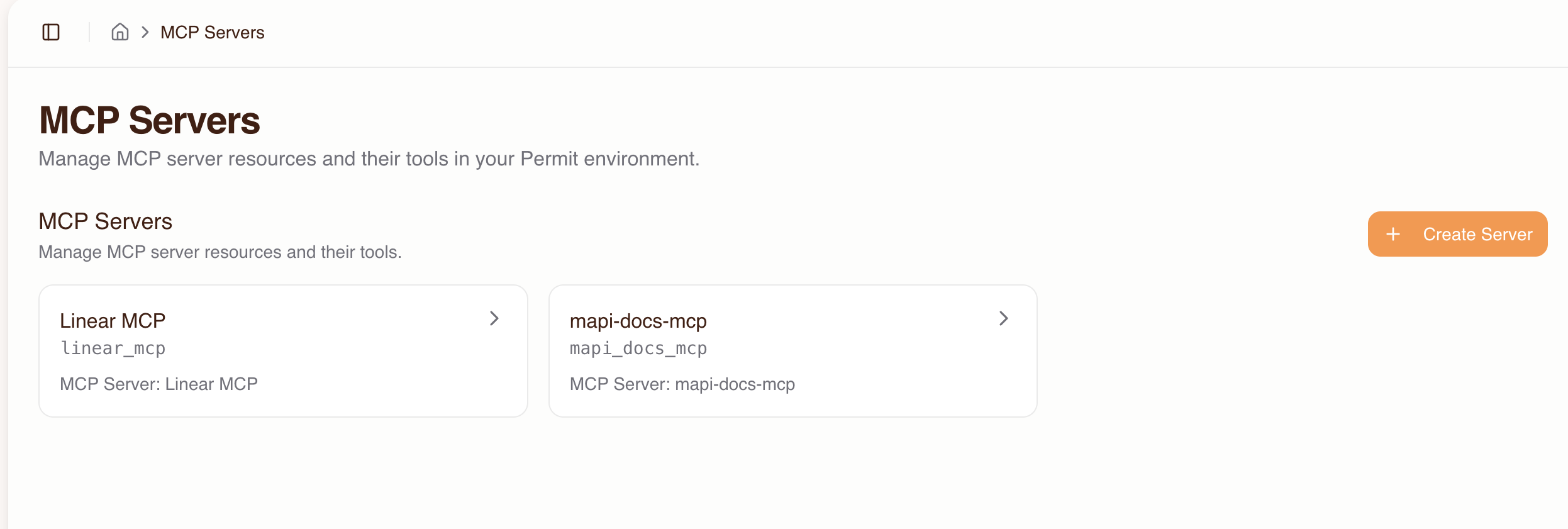
- Enter the upstream MCP server URL (e.g.,
https://mcp.linear.app/mcp) and click Connect
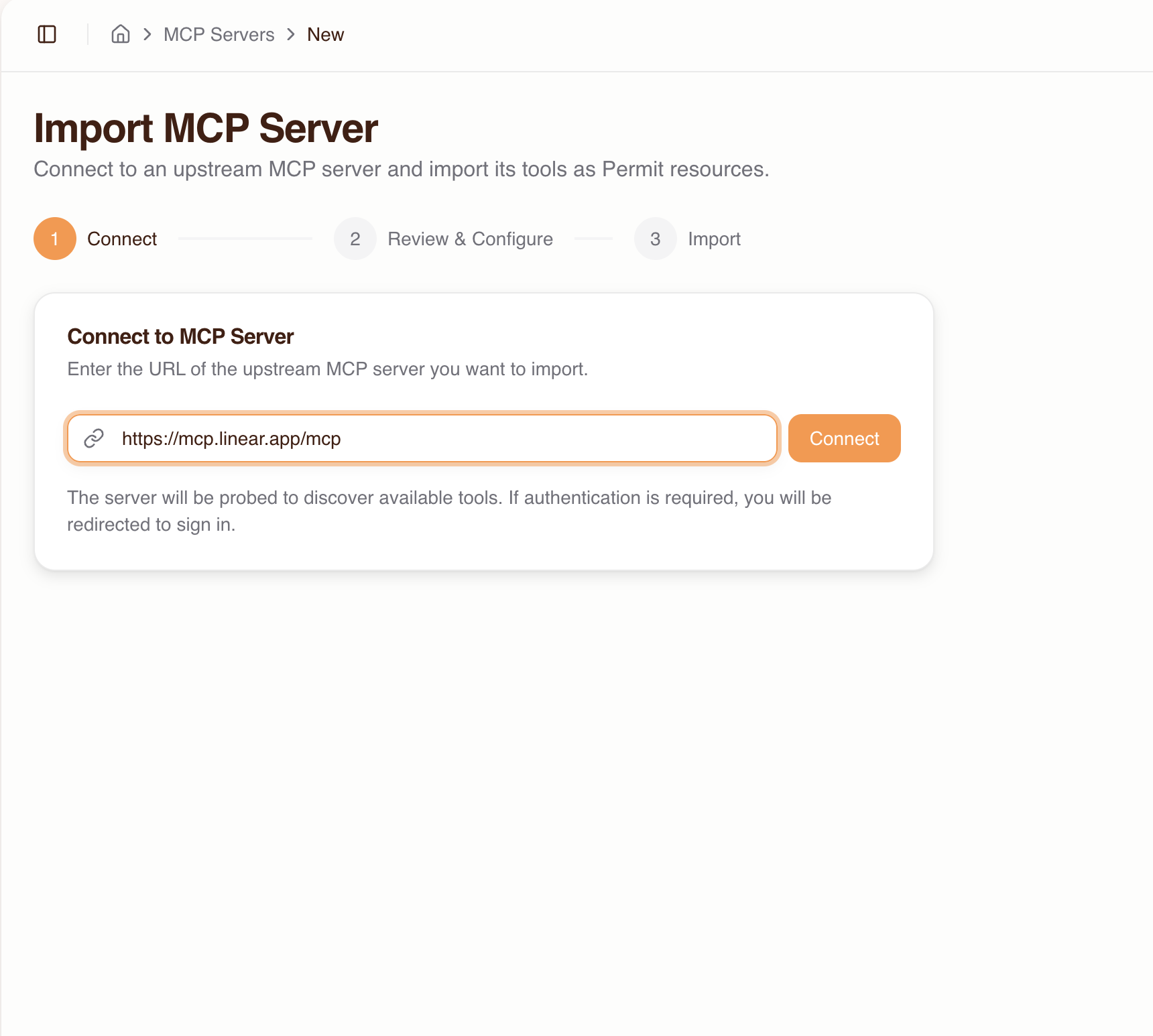
- If the server requires authentication, you'll be redirected to sign in with the upstream provider
- If the provider doesn't support automatic client registration, you'll need to enter OAuth credentials (Client ID / Secret) manually
- Review the discovered tools:
- Each tool is auto-classified with a trust level based on its name pattern (see trust level reference)
- You can override the trust level per tool and enable or disable individual tools
- Click Import
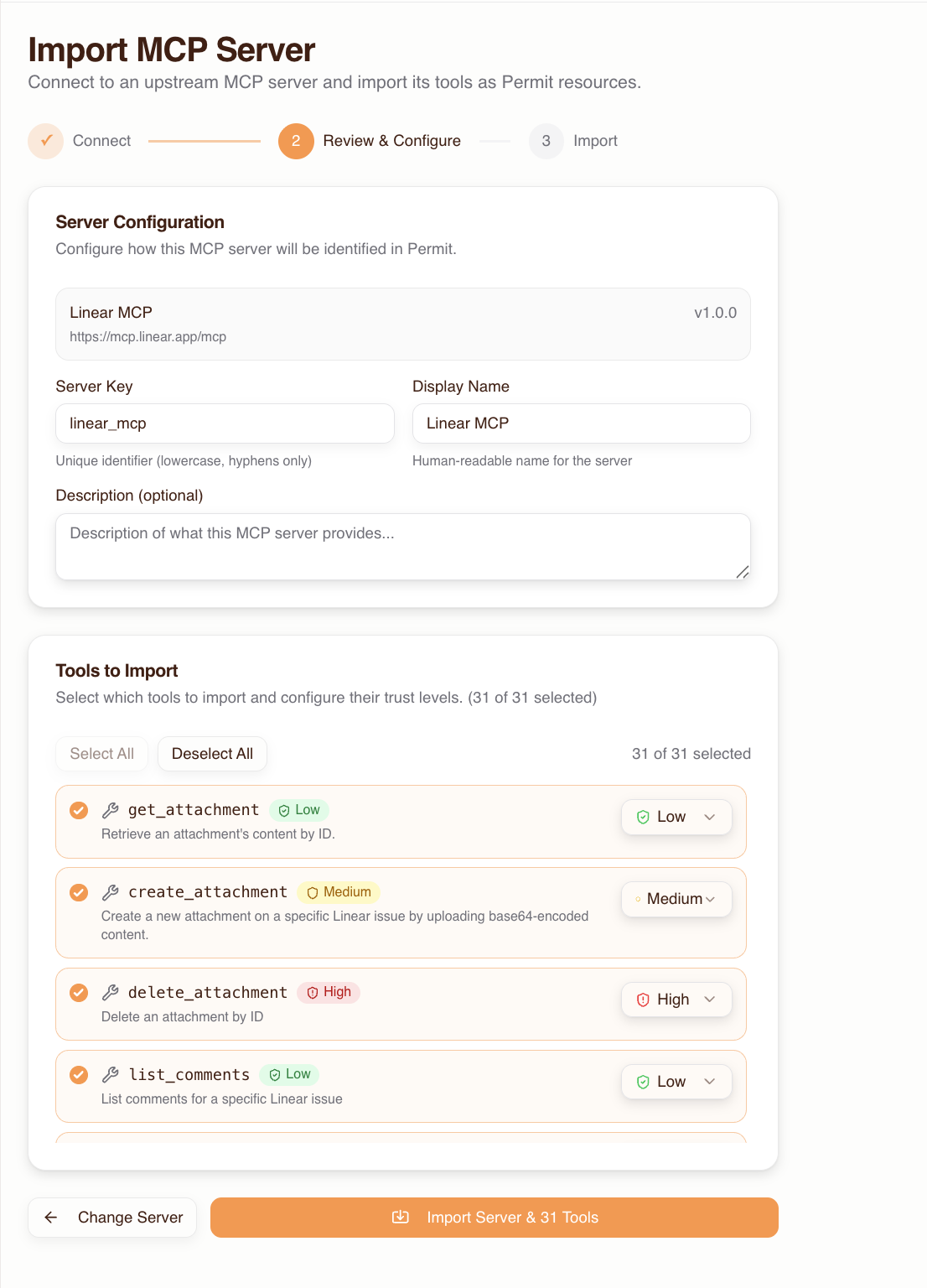
Expected result: The MCP server and its tools appear on the MCP Servers page. Tools are classified into low, medium, and high trust levels. No users can access the server yet.
Edit an MCP server
After import, manage the server from its detail page in app.agent.security:
- Add or remove tools
- Change trust levels per tool
- Update the server name and description
- Remove the server entirely
Want users to connect to MCP servers that aren't pre-imported? You can enable Dynamic MCPs in host settings to allow users to enter any MCP server URL during consent. See Platform: Dynamic MCPs for details.
4. Grant user access to MCP servers
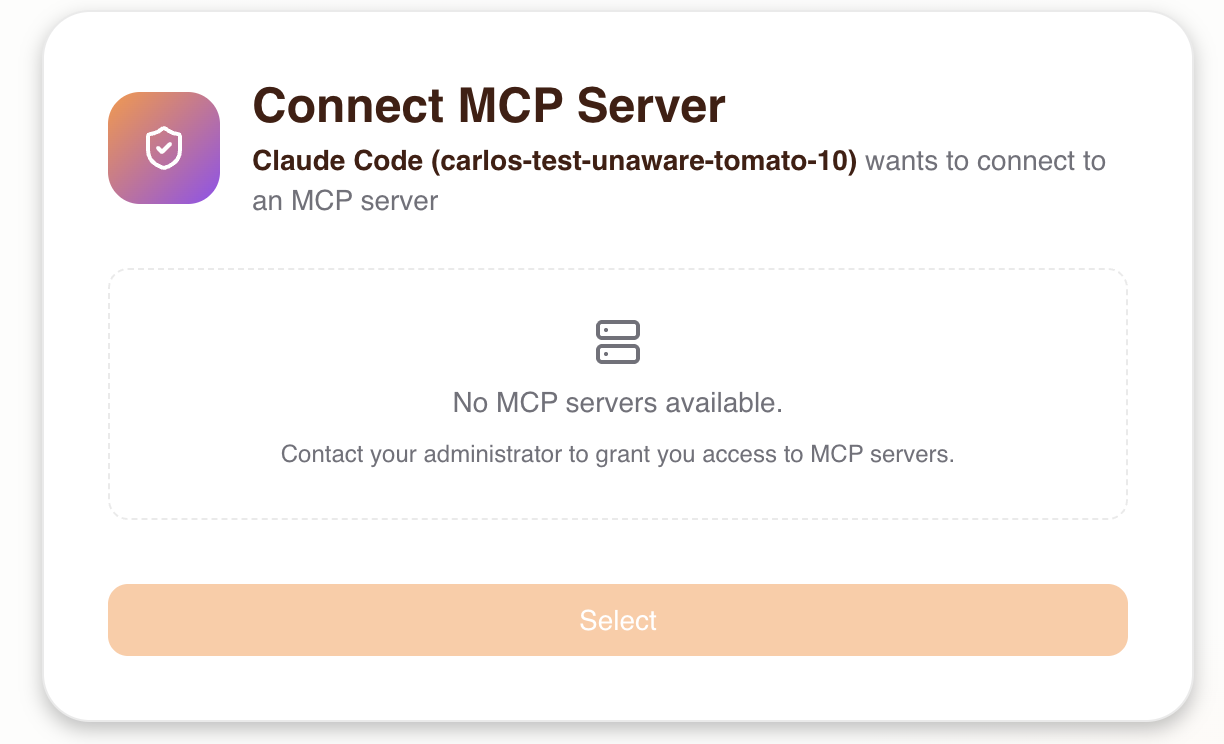
By default, users have no permissions to any MCP server. An admin must grant access before a user goes through the consent flow, otherwise they will see an empty server list.
Granting user-level access is a step that's easy to overlook. If users report seeing no MCP servers during consent, check that you've granted them access here first.
- Go to Humans
- You can add a user before they've signed in — they will be pre-authorized for when they first connect
- Users also appear here automatically after their first sign-in
- Select a user and click Grant Access
- Choose which MCP servers the user is allowed to connect to, and set a max trust level for each
- This trust level is a ceiling — during consent, the user can only grant their agent up to this level
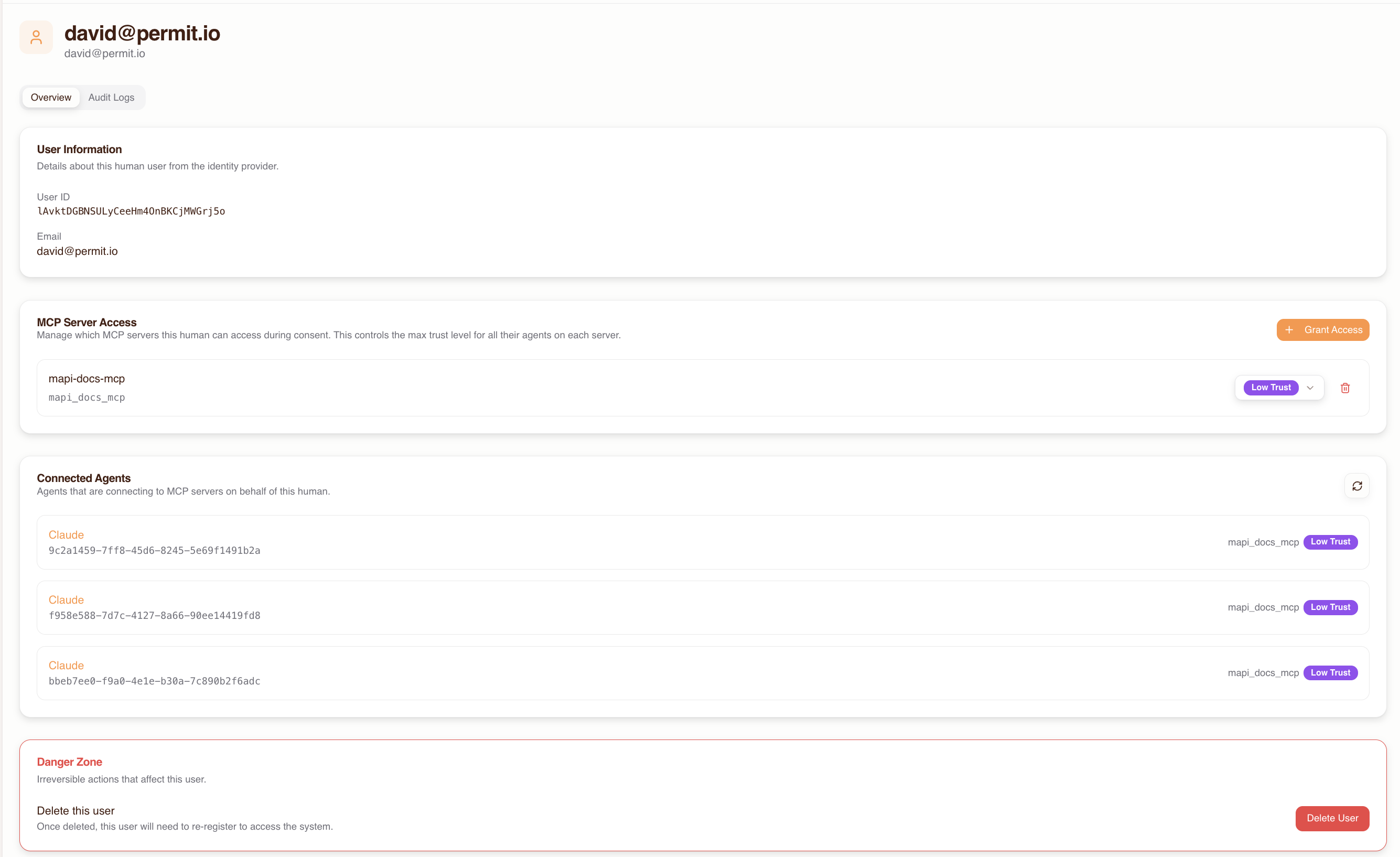
Expected result: The user now has permission to connect to the selected MCP servers. When they go through the consent flow, they will see those servers in the list.
When the user later completes the consent flow, they will see only the MCP servers they've been granted access to.
5. Manage agents and user permissions
Agents
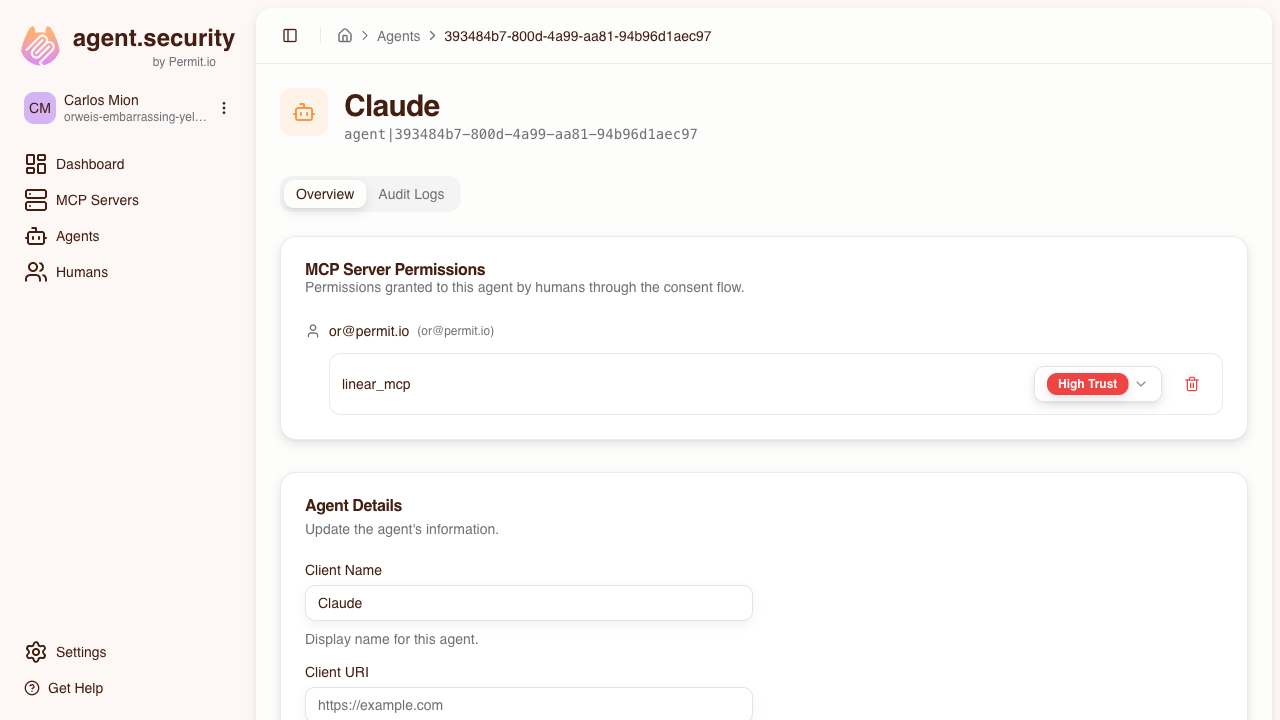
Agents are MCP clients that connect through the gateway. They appear automatically on the Agents page after a user completes the consent flow.
The table lists each agent's Name, Client ID, Email, URI, and Type.
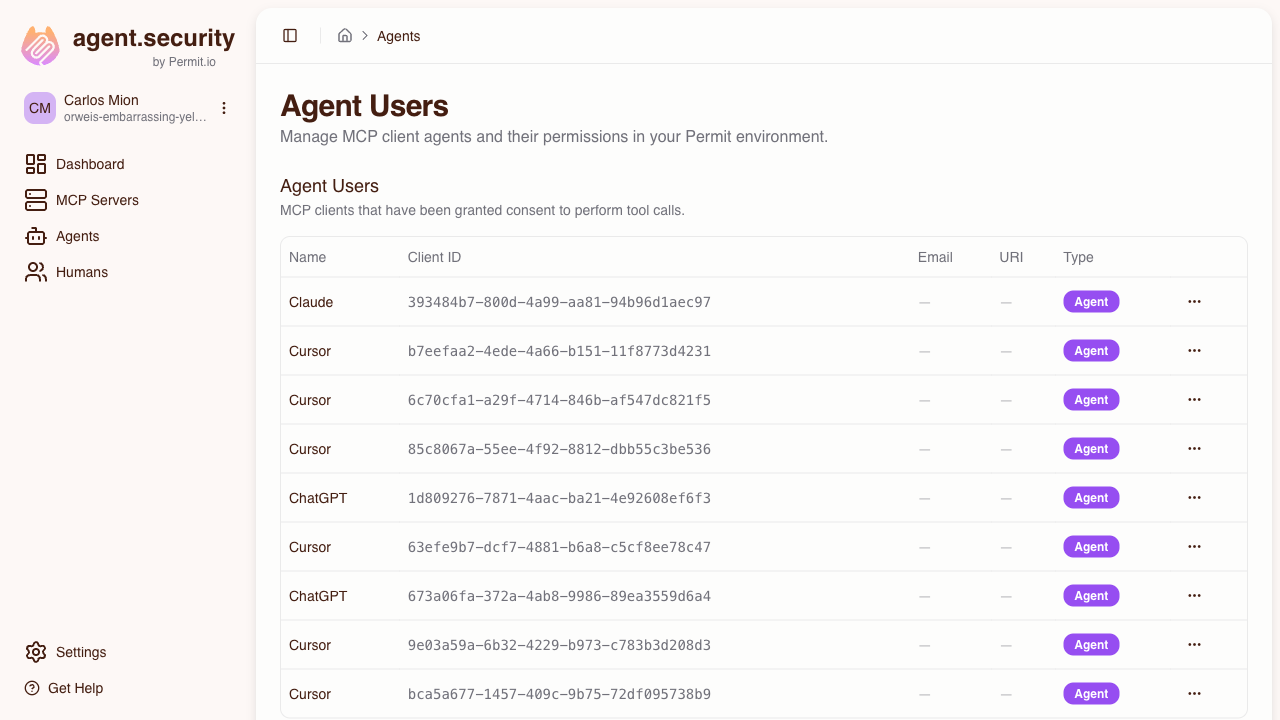
Click on an agent to open its detail page, where you can:
- View which MCP servers it has access to and at what trust level
- Change its max trust level per server
- Revoke access to specific servers
Humans
Users appear on the Humans page automatically after their first sign-in, but you can also add them beforehand to pre-authorize access (see Step 4).
For each user you can:
- View which MCP servers they have been granted access to
- Grant or revoke access to specific MCP servers
- View their connected agents and activity
6. Share with your users
Give your users the gateway MCP URL so they can connect their MCP clients. The host detail page in app.agent.security provides ready-to-copy configuration snippets for each client.
The examples below use mcp-remote, a community tool that bridges stdio-based MCP clients (like Cursor and Claude Desktop) to Streamable HTTP endpoints. It handles OAuth authentication automatically.
Cursor / VS Code
Add to .cursor/mcp.json (Cursor) or your VS Code MCP settings:
{
  "mcpServers": {
    "permit-mcp-gateway": {
      "command": "npx",
      "args": ["-y", "mcp-remote", "https://acme-brave-coral-37.agent.security/mcp"]
    }
  }
}
Claude Desktop
Add to your Claude Desktop config file:
- macOS:
~/Library/Application Support/Claude/claude_desktop_config.json - Windows:
%APPDATA%\Claude\claude_desktop_config.json
{
  "mcpServers": {
    "permit-mcp-gateway": {
      "command": "npx",
      "args": ["-y", "mcp-remote", "https://acme-brave-coral-37.agent.security/mcp"]
    }
  }
}
Claude Code
claude mcp add permit-mcp-gateway --transport http https://acme-brave-coral-37.agent.security/mcp
Pre-selected MCP server
To link users directly to a specific MCP server, append the upstream URL as a query parameter:
https://acme-brave-coral-37.agent.security/mcp?upstream_mcp=https://mcp.linear.app/mcp
The consent UI will have that MCP server pre-selected so the user can proceed directly to trust level selection. The user must still have been granted access to the server by an admin. If the user has not been granted access to the specified server, it will not appear in the consent screen — the pre-selection parameter is ignored and the user sees only the servers they have access to.
Alternatively, use a path-based URL to route directly to a specific server by its key:
https://acme-brave-coral-37.agent.security/mcp/linear
This bypasses the server selection step entirely — the consent flow still requires login and trust level selection, but the user connects directly to the specified server.
7. User consent flow
When a user connects an MCP client for the first time, they complete a one-time consent flow:
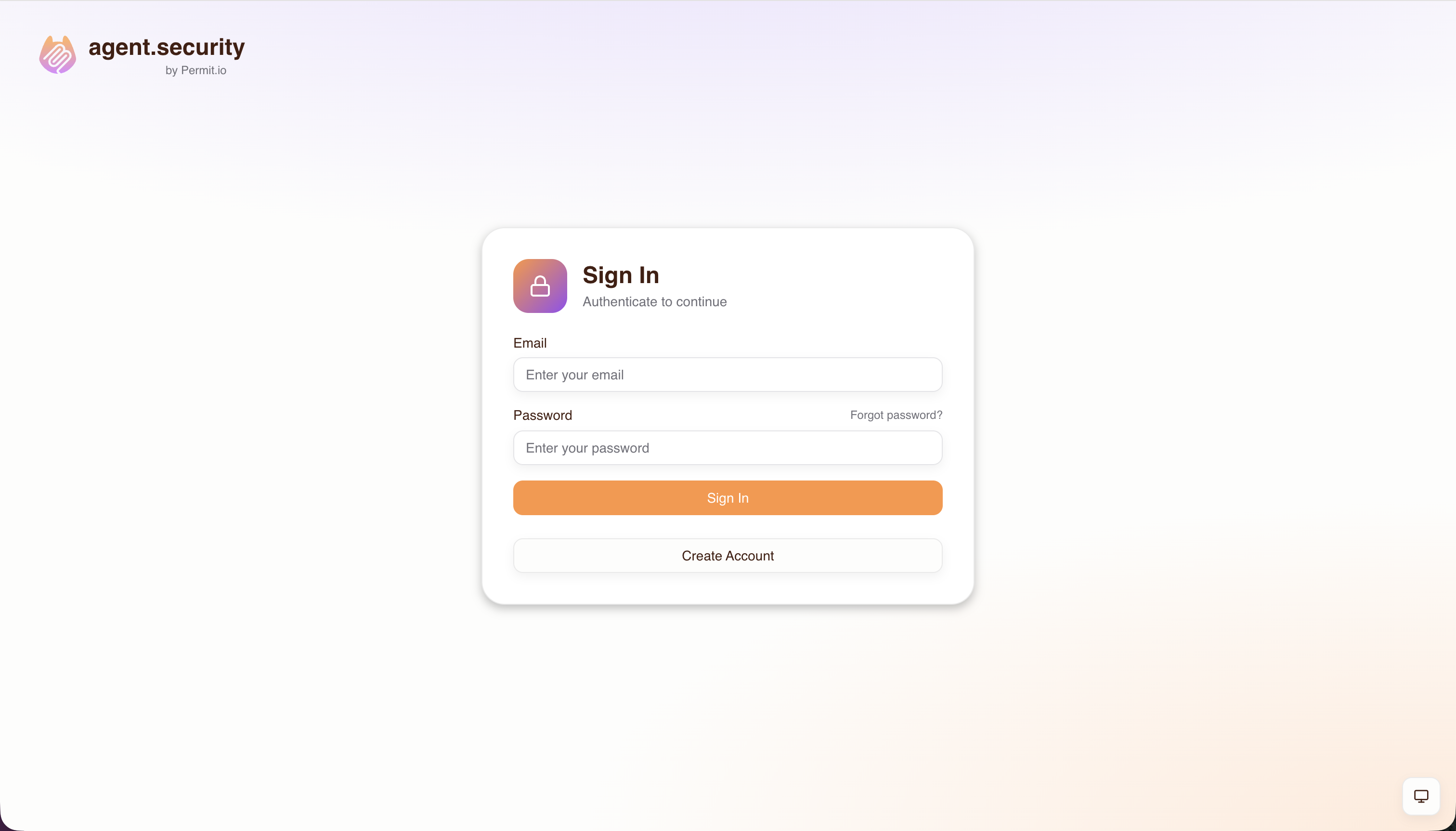
- Sign in — the MCP client opens a browser window where the user creates an account or logs in
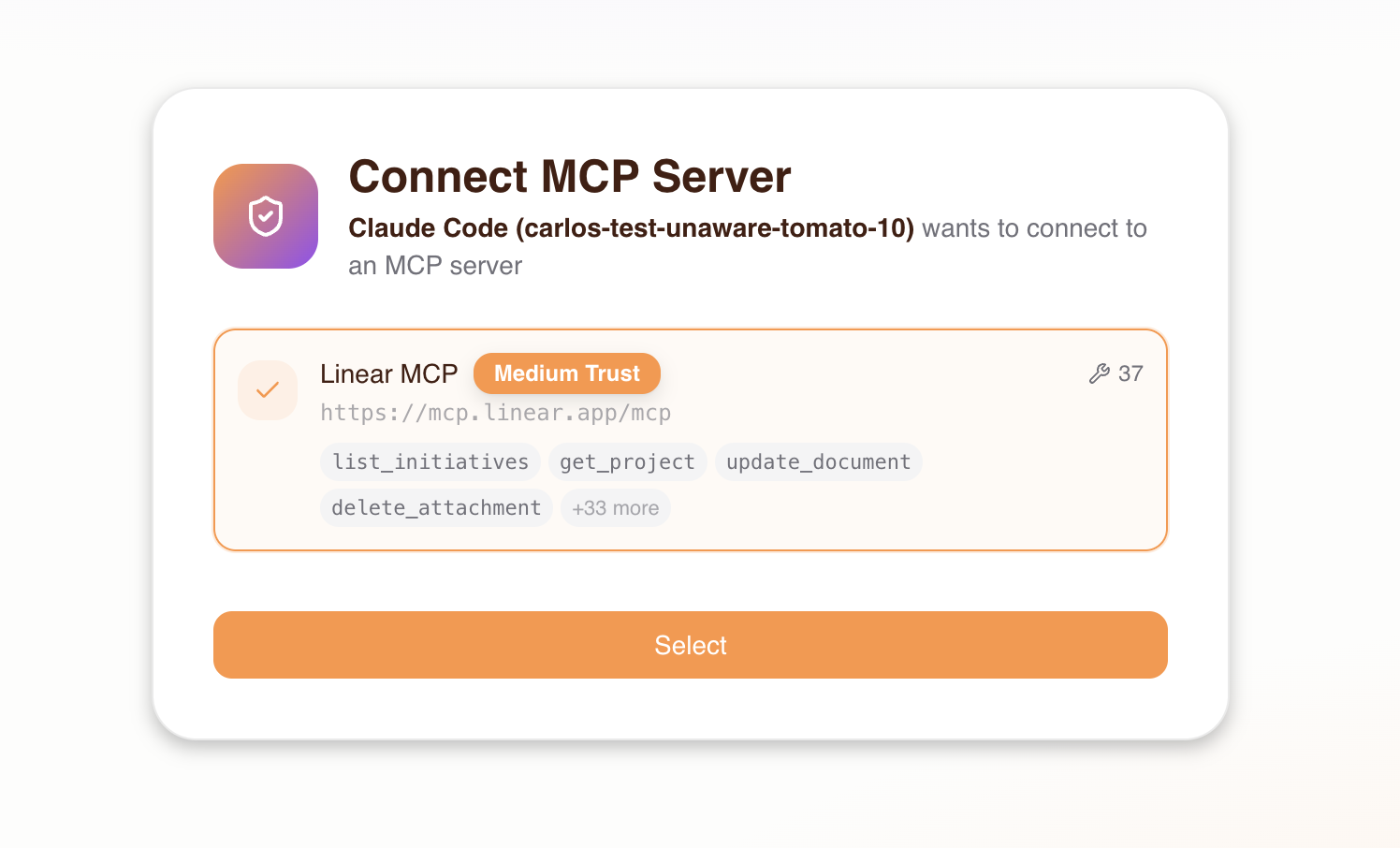
- Choose an MCP server — the consent screen shows a list of MCP servers the admin has granted the user access to. The user selects the server they want to connect to.
If the user has not been granted access to any MCP server by the admin, they will see this empty state:
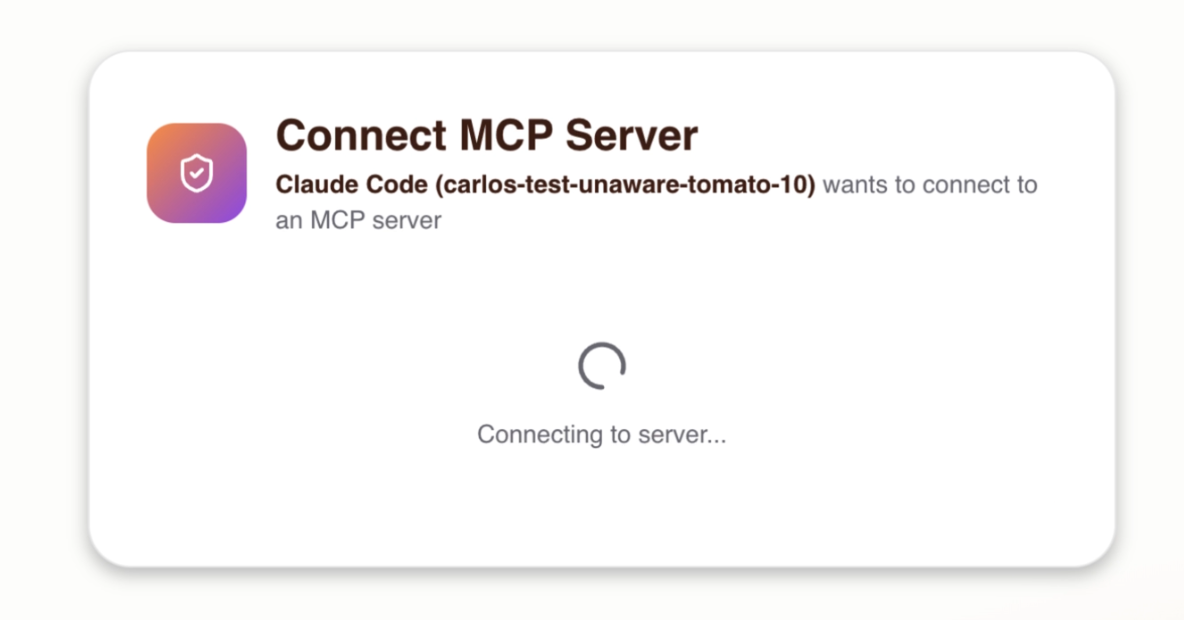
After selecting a server, the consent screen connects to verify the server is reachable.
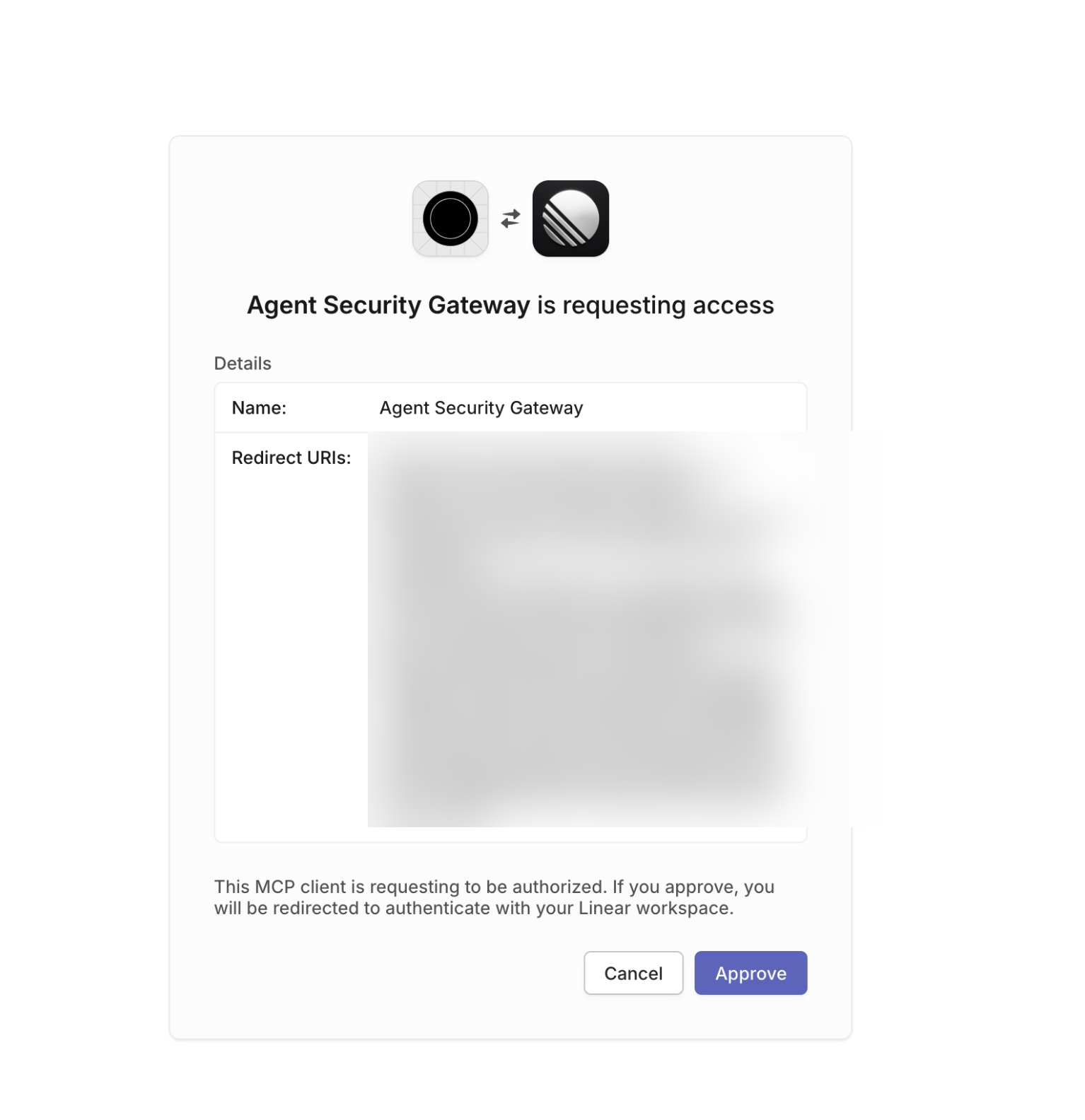
- Authenticate with the upstream server — if the MCP server requires OAuth, the user is redirected to sign in with the upstream provider (e.g., GitHub, Linear)
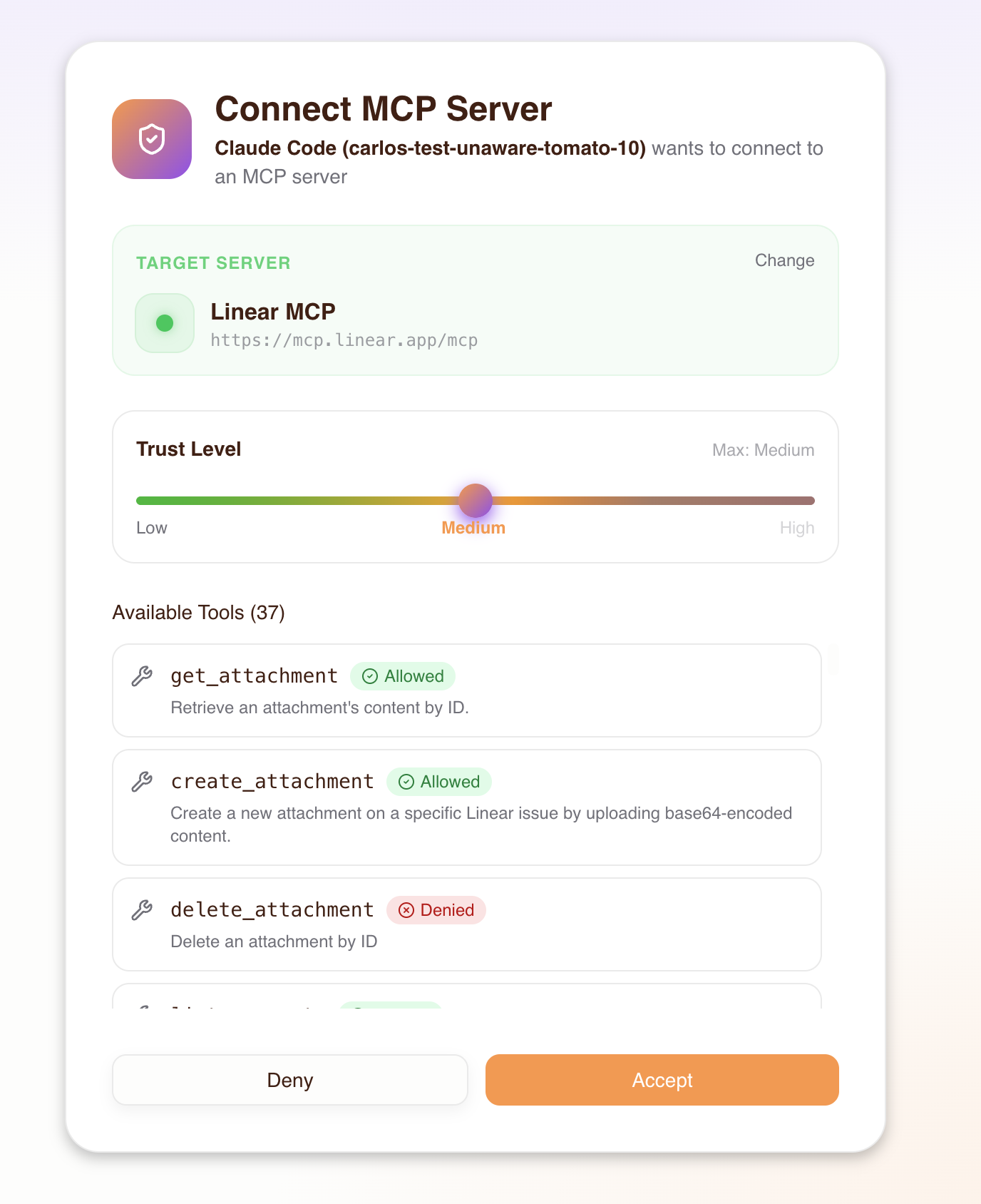
- Set trust level — the user chooses the trust level they want to grant their agent, up to the maximum level the admin configured in Step 4. The consent screen shows which tools are allowed or denied at each level.
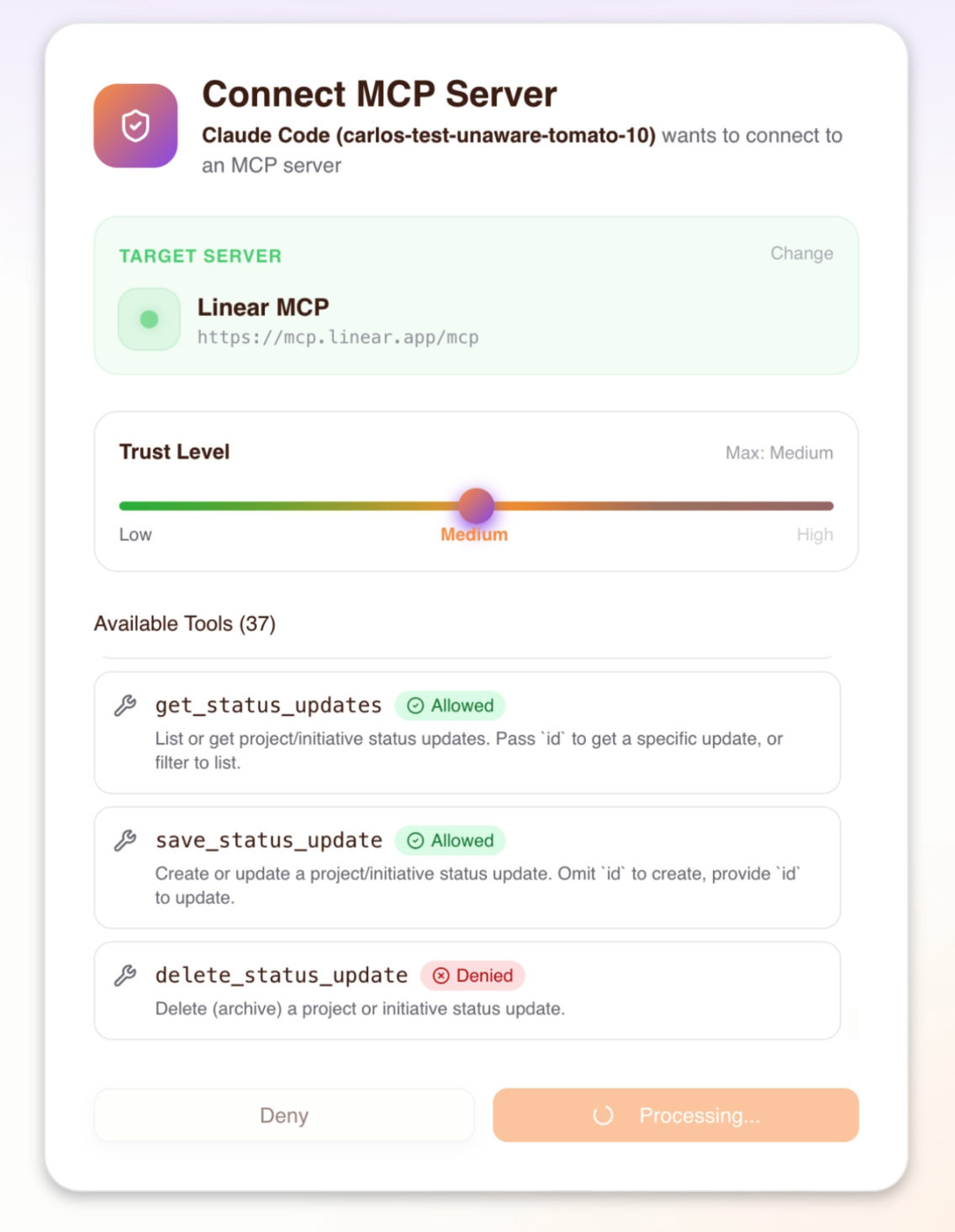
- Accept — permissions are saved to Permit and the MCP client receives an access token
On subsequent connections the existing session is reused until it expires or is revoked. If the upstream MCP server issued OAuth tokens with a refresh token, the gateway automatically refreshes the access token before it expires — the user does not need to re-authenticate with the upstream provider.
When the gateway session expires (after 30 days of inactivity or 90 days absolute), the MCP client will receive a token-expired error and the user must reconnect — the consent flow runs again automatically, letting them re-authenticate and confirm their trust level. No data or permissions are lost; the new session picks up the same access grants the admin has configured. See Troubleshooting if you encounter token-expired errors.
8. Runtime authorization
Every tool call from an MCP client is authorized in real time:
- The MCP client sends a
call_toolrequest with a Bearer token - The gateway verifies the token and identifies the agent
- The gateway checks Permit: "Can this agent call this tool on this MCP server?"
- Allowed — the call is proxied to the upstream MCP server
- Denied — the client receives a permission denied error
Authorization is based on the trust level assigned during consent. For example, an agent with medium trust can call low and medium trust tools, but not high trust tools.
The gateway currently returns all tools in list_tools responses, regardless of the agent's trust level. Authorization is enforced at call_tool time — if an agent attempts to call a tool above its trust level, the call is denied with a permission error. This means agents may see tools in the list that they cannot actually invoke.
9. Audit logs
Every authorization decision — allowed or denied — is recorded in two places:
- Permit MCP Gateway dashboard (app.agent.security) — the Humans page shows activity per user and the Agents page shows activity per agent, including every tool call and whether it was allowed or denied
- Permit.io dashboard (app.permit.io) — the Audit Log page in the linked environment shows the same authorization decisions alongside your other Permit policy logs
Each log entry includes the agent identity, the tool called, the MCP server targeted, and whether the request was allowed or denied.
For detailed guidance on reading audit logs, filtering, and common debugging scenarios, see the Audit Logs page.
Trust level reference
Tools are auto-classified into trust levels based on naming patterns during import. You can override the level for any tool.
| Trust level | Includes | Naming patterns | Examples |
|---|---|---|---|
| Low | Read-only operations (default) | Default for tools not matching medium or high patterns | get_user, list_issues, search_files |
| Medium | Low + write operations | Tools containing: create, write, update, set, modify, edit, put, post, insert, add, send, execute, run, invoke, submit, push, publish, deploy, apply, patch | create_issue, update_record, send_message |
| High | Low + medium + destructive operations | Tools containing: delete, remove, destroy, drop, purge, erase, truncate, terminate, kill, revoke | delete_repo, remove_member, destroy_environment |
Trust levels are hierarchical: high includes all medium and low permissions, medium includes all low permissions.
Tools that don't match any medium or high pattern default to low trust. The heuristics match keywords anywhere in the tool name (e.g., a tool named bulk_delete_users matches "high" because it contains delete).
Troubleshooting
If you have the same MCP server configured both through Permit MCP Gateway and as a direct connection in your MCP client, your AI agent may bypass the gateway entirely. Always remove or disable direct MCP server connections for any server you've imported into the gateway. See the first troubleshooting entry below.
| Symptom | Likely cause | Fix |
|---|---|---|
| Agent bypasses permissions and performs actions that should be denied (e.g., deletes a resource despite medium trust level) | The same MCP server is installed both through the gateway and directly in the MCP client. The AI agent may route calls through the direct connection, bypassing the gateway entirely. | Remove or disable the duplicate direct MCP server connection from your client configuration. Only the gateway URL should remain. For example, if you imported Linear via the gateway, remove any separate mcp.linear.app entry from your .cursor/mcp.json or Claude Desktop config. |
| MCP client shows "host not found" | Gateway URL is incorrect or host doesn't exist | Verify the URL on the Hosts section of the Dashboard |
| No MCP servers in the consent screen | Admin hasn't granted the user access to any servers | Grant the user access on the Humans page |
| "Permission denied" on a tool call | Agent's trust level is too low for that tool | The user can re-consent with a higher trust level by disconnecting the MCP server in their client and reconnecting — the consent flow will run again, letting them choose a new trust level. Alternatively, the admin can adjust trust levels on the Agents page. |
| OAuth redirect fails during consent | Upstream MCP server requires manual OAuth credentials | Re-import the server and provide Client ID / Secret when prompted |
| OAuth redirect fails with "invalid client" or discovery error | Upstream OAuth credentials are wrong or the provider's PKCE/discovery URL has changed | Verify the Client ID and Secret on the server detail page in MCP Servers. If the provider changed its discovery URL, delete and re-import the server with the updated URL (see Step 3). |
| Tools not appearing after import | Tools may be disabled | Check the server detail page and enable the missing tools |
| User can't complete consent flow | Browser blocks pop-ups from the MCP client | Allow pop-ups for the agent.security domain |
| Re-consent doesn't offer a higher trust level | The user's max trust level is too low | An admin must first increase the user's max trust level on the Humans page (see Step 4) before the user re-consents |
| Token expired errors | Session has expired | The user needs to reconnect — disconnect the MCP server in the client and reconnect. The consent flow runs again, letting the user re-authenticate and confirm their trust level. |
upstream_mcp parameter used but server doesn't appear in consent | The user has not been granted access to that server | The pre-selection parameter is silently ignored when the user lacks access. Grant the user access on the Humans page (see Step 4), then have them retry. |
| Can't find audit logs | Checking only one of the two log locations | Audit logs are available both in the Permit MCP Gateway dashboard (app.agent.security) on the Humans and Agents pages, and in the Permit.io dashboard (app.permit.io) under Audit Log in the linked environment. See Audit logs for details. |
Authentication methods
Each gateway host can be configured with its own authentication methods, controlling how users sign in to the consent flow. By default, email/password authentication is enabled.
Go to the host's Authentication settings in app.agent.security to enable or disable methods.
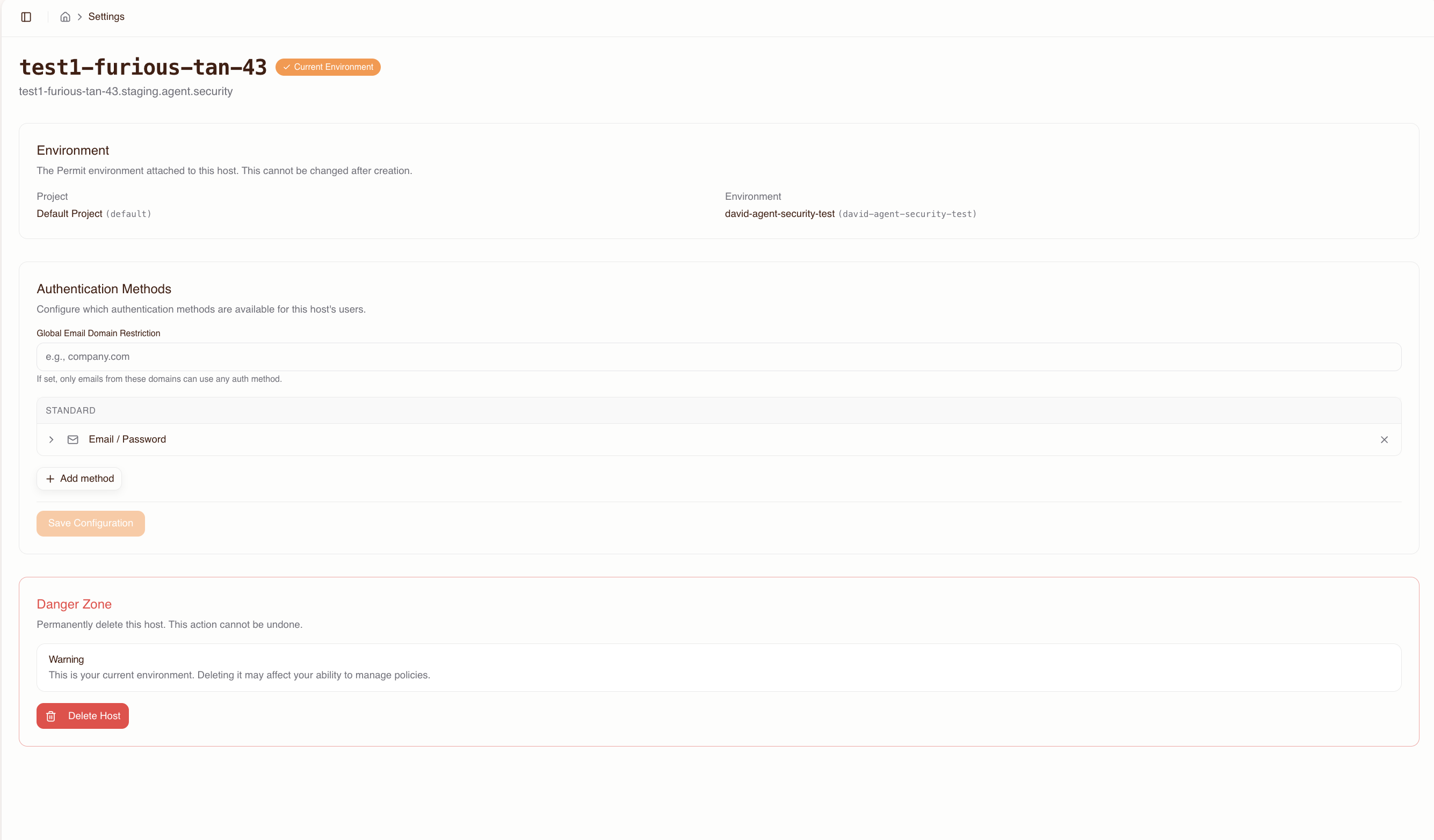
Available methods
- Email / Password: Database-backed credentials. Enabled by default.
- Email OTP: One-time passcode sent via email (6-digit code, 5-minute expiry).
- Passkeys: WebAuthn/FIDO2 standards-based credential management.
- Google OAuth: Sign in with Google. Requires a Google OAuth client ID and secret.
- GitHub OAuth: Sign in with GitHub. Requires a GitHub OAuth client ID and secret.
- Microsoft OAuth: Sign in with Microsoft. Requires a Microsoft OAuth client ID and secret. Supports multi-tenant configurations via a tenant ID.
- SAML 2.0 SSO: Enterprise single sign-on via SAML. Requires the IdP entry point URL, entity ID, and X.509 signing certificate.
- OIDC SSO: Enterprise single sign-on via OpenID Connect. Requires the issuer URL, client ID, and client secret.
Domain restrictions
Each authentication method supports allowed email domain restrictions. Domain restrictions can be configured at two levels:
- Global — applies to all authentication methods
- Per method — applies only to a specific method (e.g., Google OAuth)
These two levels use intersection semantics: a domain must be allowed by both the global list and the method-specific list for a user to sign in. Adding a domain to a method-specific list does not bypass the global list.
If you set a global domain restriction to @acme.com, adding @partner.com to the Google OAuth method-specific list will not allow @partner.com users to sign in via Google — the domain must also appear in the global list. To allow @partner.com for Google OAuth only, add it to both the global list and the Google OAuth method list.
For SSO methods, you can also configure force-redirect domains — users with matching email domains are automatically redirected to the SSO provider instead of seeing the login screen.
SAML service provider details
When configuring SAML SSO, provide your identity provider with the following service provider (SP) details from the host settings page:
- SP Entity ID:
https://{subdomain}.agent.security/api/auth/sso/saml2/sp/metadata - ACS URL:
https://{subdomain}.agent.security/api/auth/sso/saml2/callback/sso-{subdomain} - SP Metadata XML: available for download from the host settings page