Create a ReBAC Policy
Setting up Relationship-Based Access Control (ReBAC) policies may seem complex, but with Permit, it's a simple and intuitive process. This step-by-step guide will walk you through configuring and enforcing ReBAC policies using the Permit dashboard.
Defining our ReBAC Policy - Schema
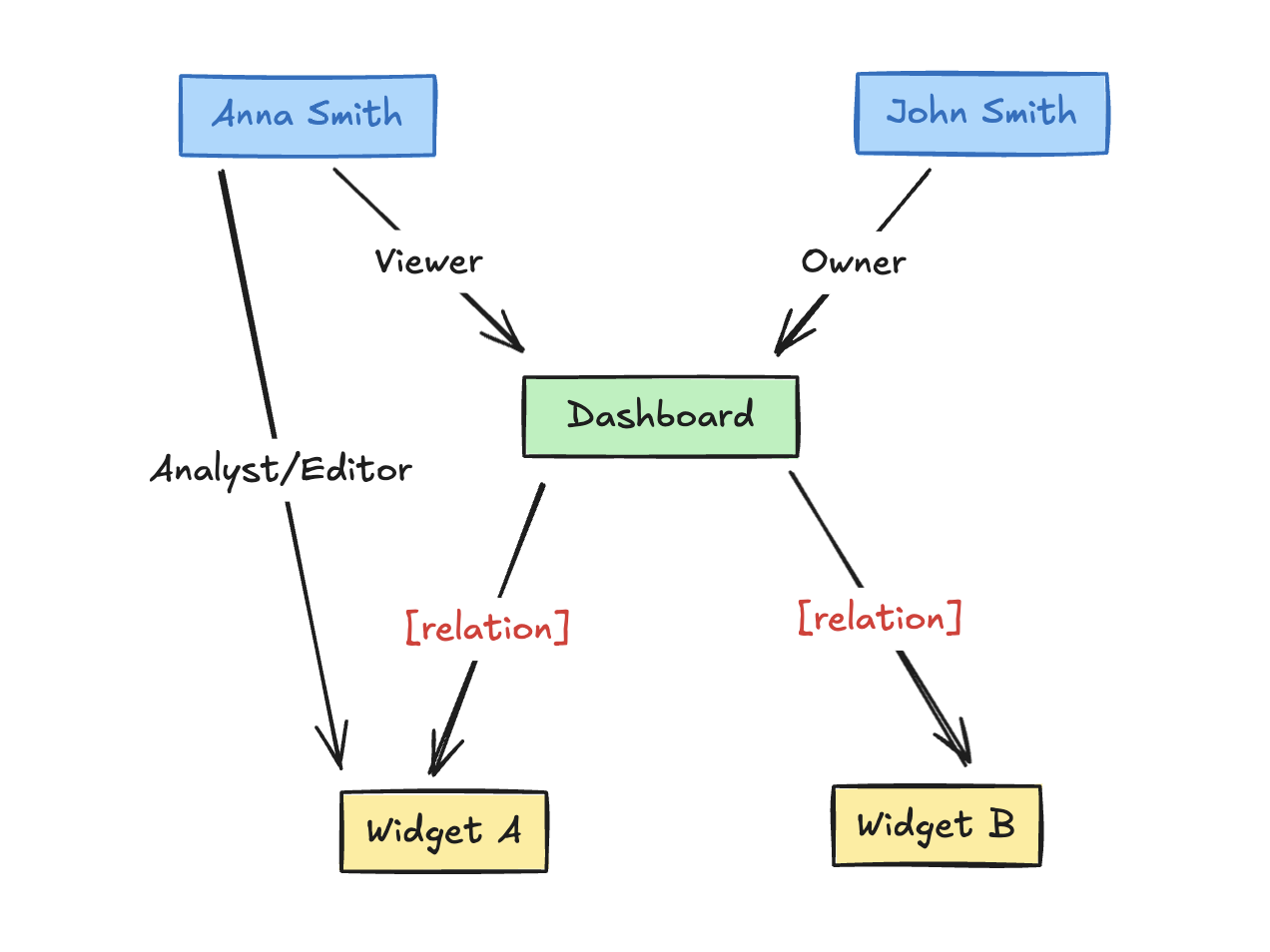
In this guide, we'll set up ReBAC permissions for a dashboarding system with two resource types: Dashboards (parent) and
Widgets (child). Users can have roles — Owner, Viewer, or Analyst/Editor — each with specific permissions.
The access to a Dashboard resource will automatically includes permissions for its associated Widgets.
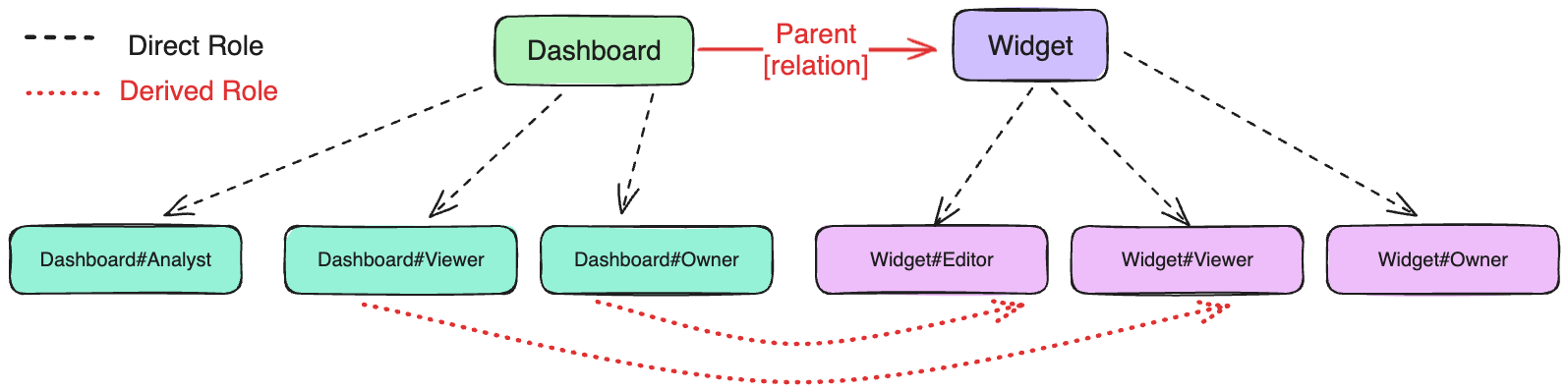
To configure the ReBAC policy schema, we'll start by defining key resources.
For this example, we'll define two resources: Dashboard and Widget, each with specific actions and resource roles. These
resources form the foundation of the ReBAC policy structure, ensuring proper access control.
Step 1: Create Resources and their Roles
Start by navigating to the Resources section in the Permit dashboard - Policy > Resources. Once there, locate the Add Resource
button to begin creating your first resource. This is the first step in setting up your ReBAC policy, where each resource will
be configured with relevant permissions and roles.
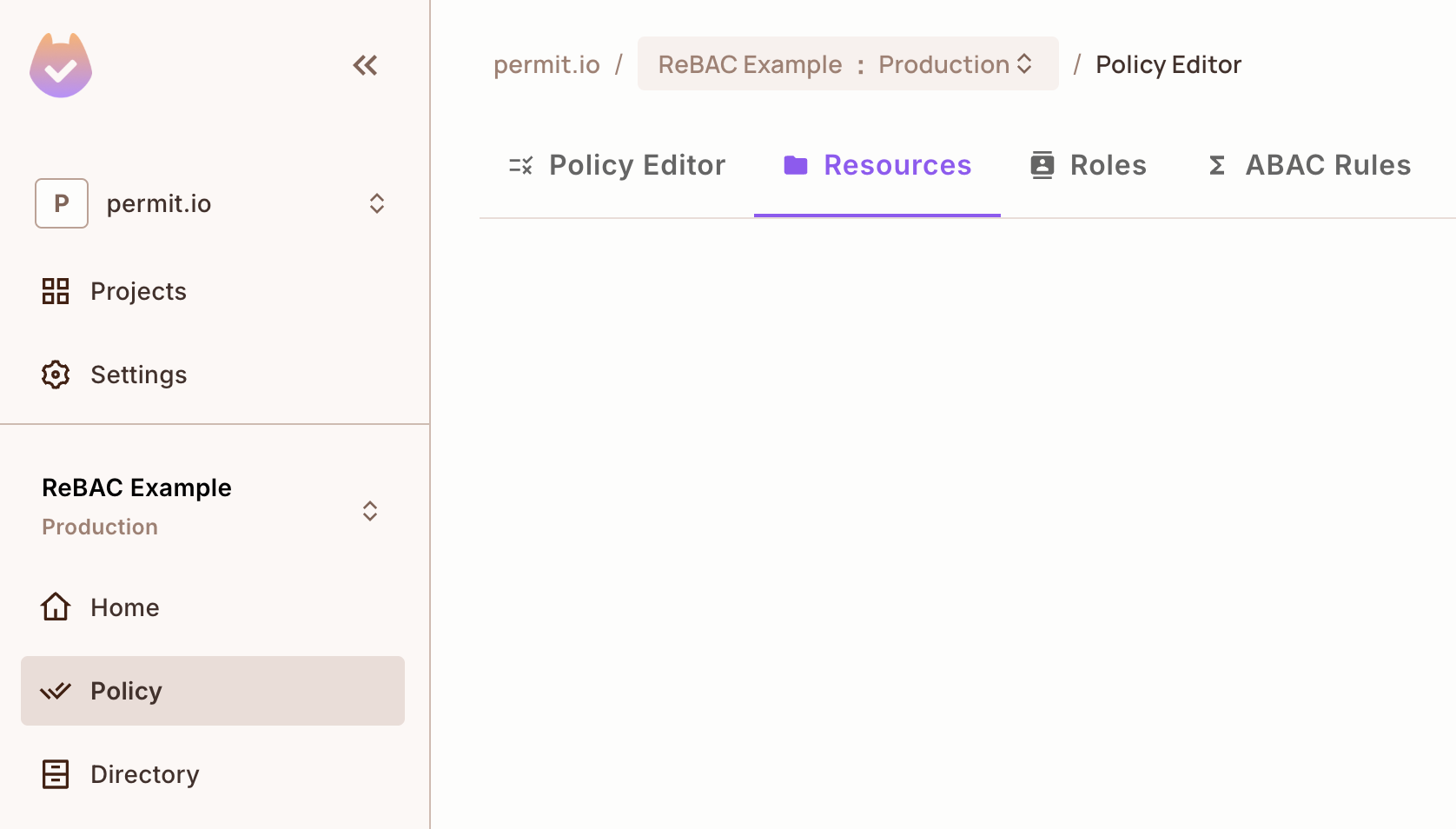
Creating the Dashboard Resource
Click on Add Resource and enter the following details for the new resource:
- Name:
Dashboard - Actions:
view,remove-widget,add-widget,edit,delete,create - Roles on resource:
Owner,Viewer,Analyst
After filling in the information, save the resource. At this point, you've successfully created the Dashboard resource,
which will serve as a parent resource in your system.
Creating the Widget Resource
Next, click Add Resource again and provide the following details:
- Name:
Widget - Actions:
view,edit,delete,create - Roles on resource:
Owner,Viewer,Editor
Save this resource once all the fields are complete. Now, the Widget resource is configured and will function as a child
resource tied to the Dashboard.
Resources Overview
With these steps completed, you now have two resources defined in your ReBAC policy:
Dashboard, with its actions and roles.Widget, with its distinct set of actions and roles.
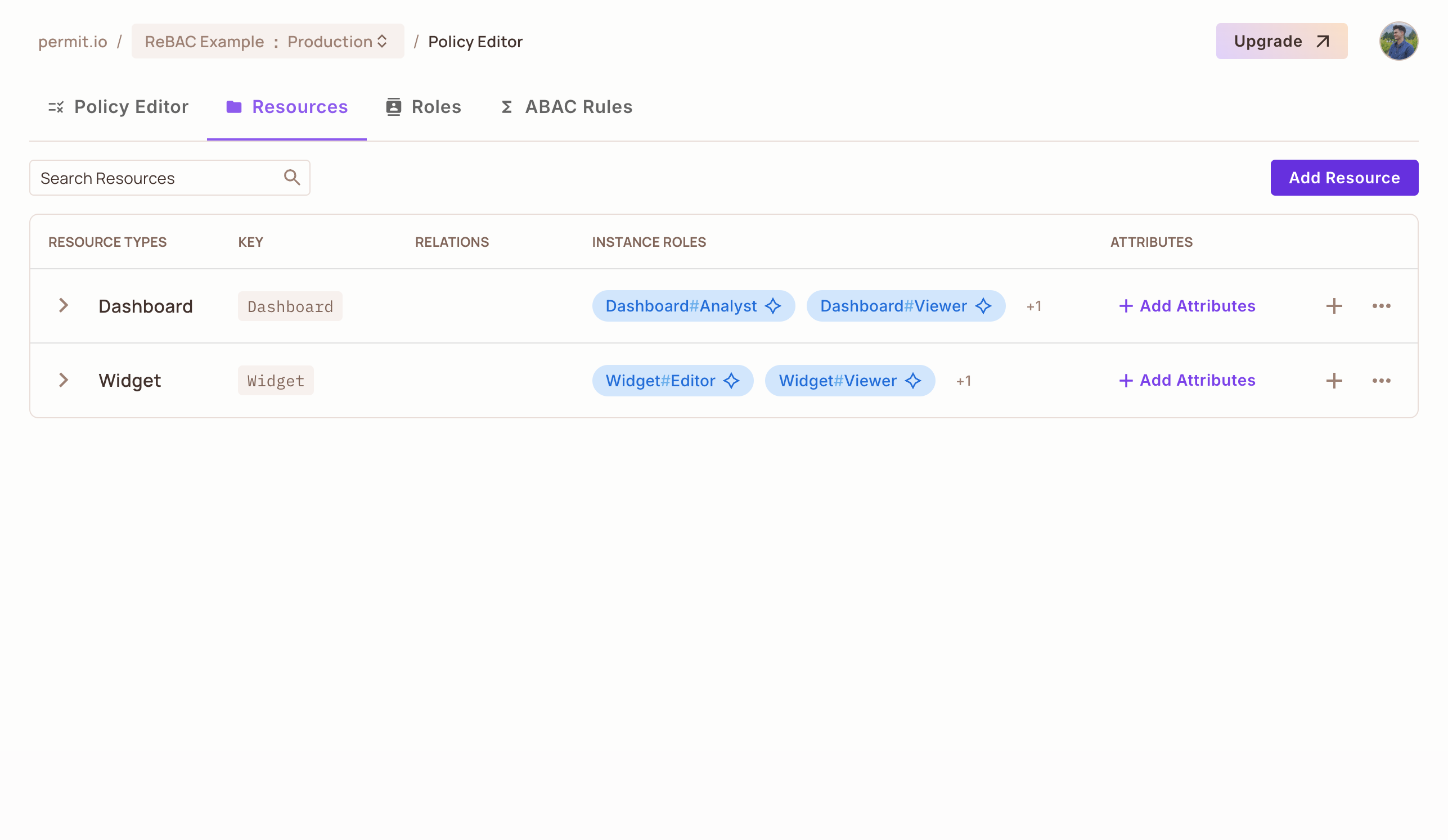
Step 2: Define resource relations
The next step it to configure the relations between resources within the Permit Dashboard.
Open the Resource Editor
In the Resources section, locate the Dashboard resource. Click the three-dot menu icon next to it and select Edit.
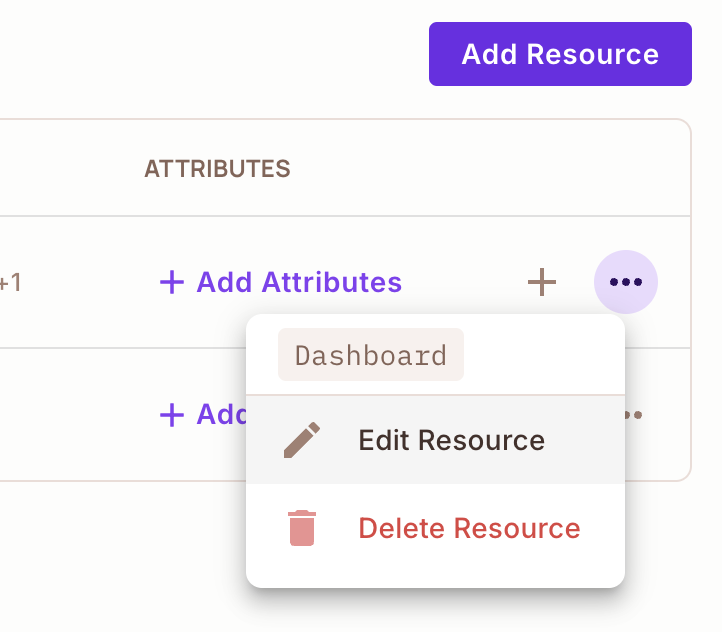
Define the Parent-Child Relation
Navigate to the Relations section of the resource editor. Configure the Dashboard resource as the parent of the Widget resource.
This setup ensures that the Dashboard can act as a container for its associated Widget resources.
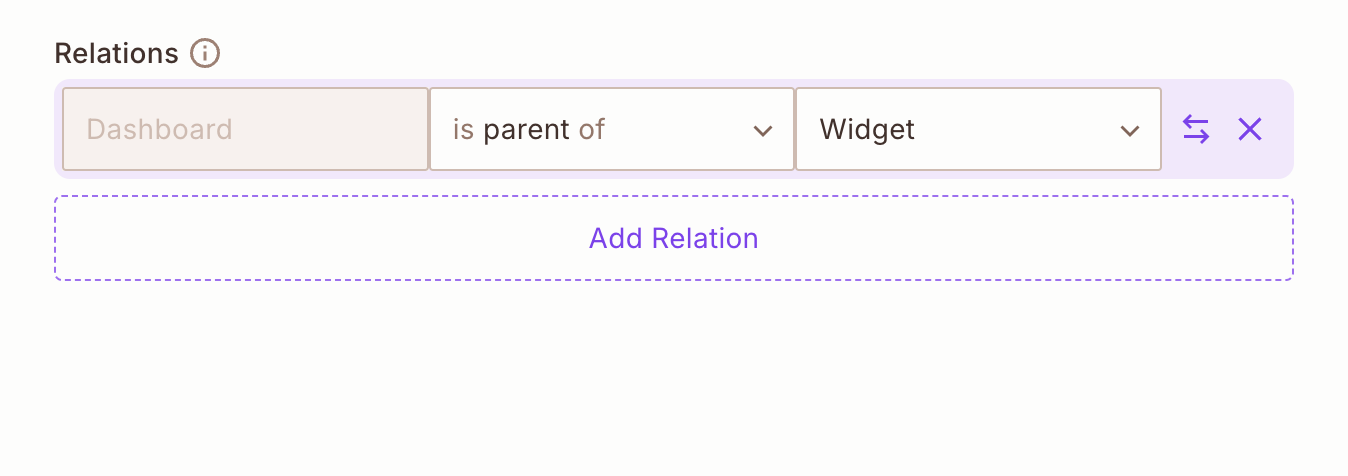
A resource cannot be its own parent. If a resource requires a self-relation, consider using an alternative relation type such as owner or container.
Once you successfully define the relation on the roles - it will automatically create the roles for you in the policy editor.
Save the Relation
Once the relation is defined, save the configuration. You now have a clear hierarchical relation where the Dashboard resource is a parent to Widget resource.
Step 3: Define role derivations
In this step, we will be configuring the role derivations that will exist between the various user roles and their associated relationships within our system
Navigate to the Resource's Role Derivation Settings
In the Permit dashboard, go to Policy > Roles where you should now see all Resource Roles.
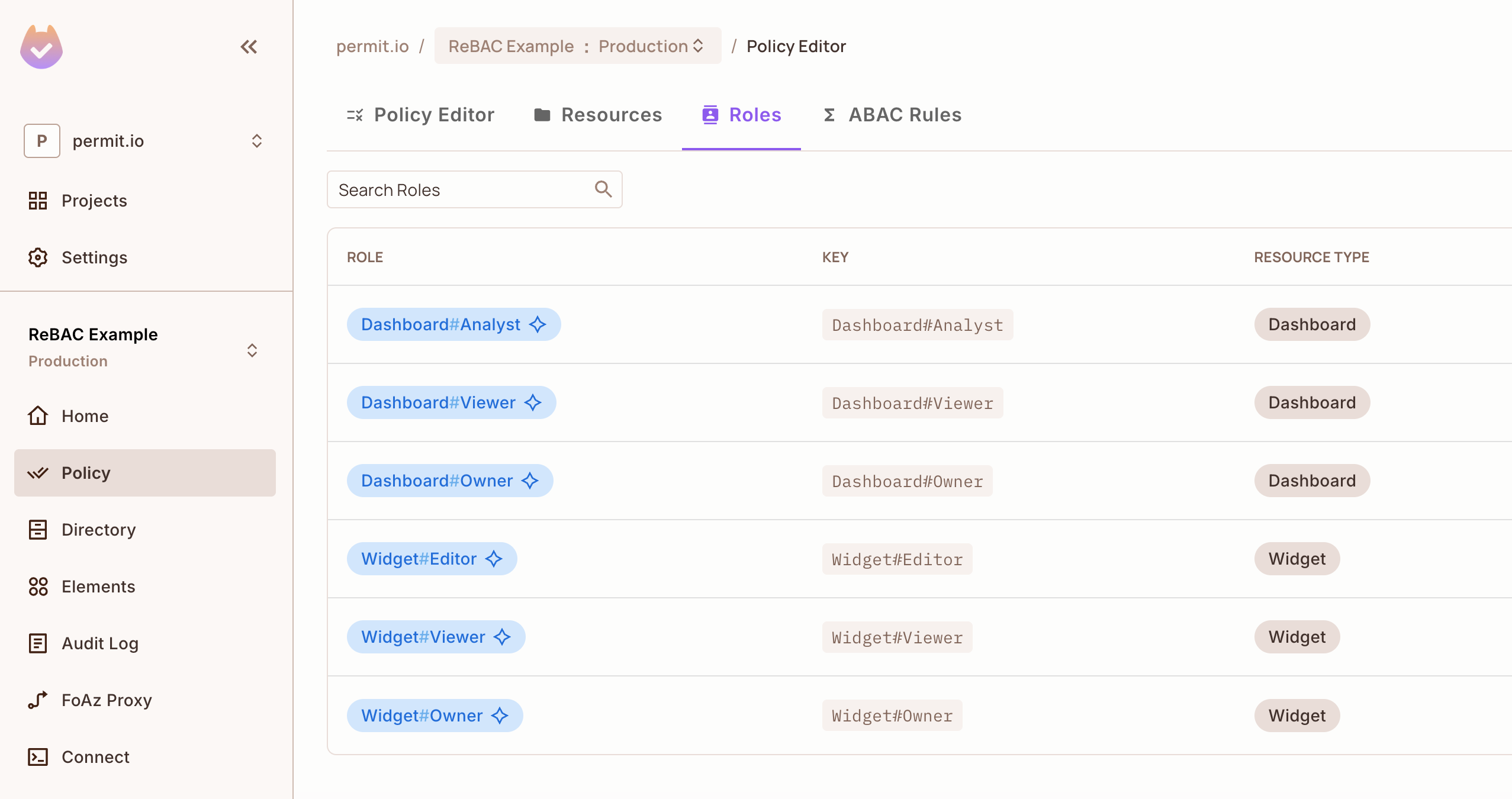
Define Role Derivation Logic
Within the Role Derivation section, establish the rules for how roles are inherited or assigned:
-
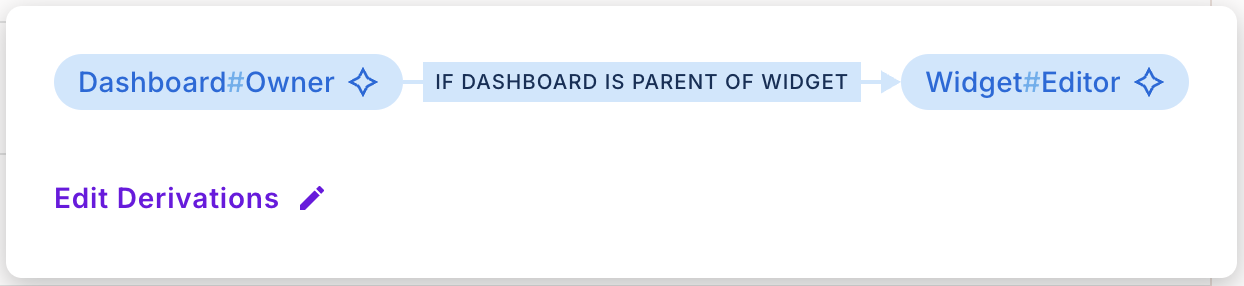
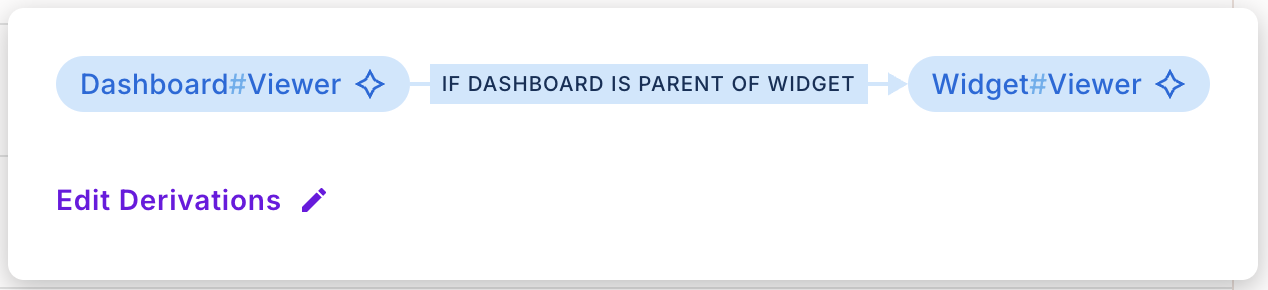
For the Widget resource, set rules that derive roles from its parent Dashboard resource. Example configurations:
-
If a user is assigned as an
Ownerof aDashboardinstance, they automatically become anEditorofall Widgetsunder that Dashboard. -
If a user is assigned as a
Viewerof aDashboardinstance, they automatically become theViewerofall Widgetsunder that Dashboard.
-
Save the Role Derivation Rules
Once the derivation logic is defined, save the changes to apply the configuration.
Step 4: Configure permissions
For each role, assign the actions that the role can perform on the particular resource resource.
For this, navigate to Policy.
For the Dashboard resource:
-
Owner: Can
view,create,edit,delete,add-widget, andremove-widget. -
Viewer: Can
viewonly. -
Analyst: Can
view,add-widget, andedit.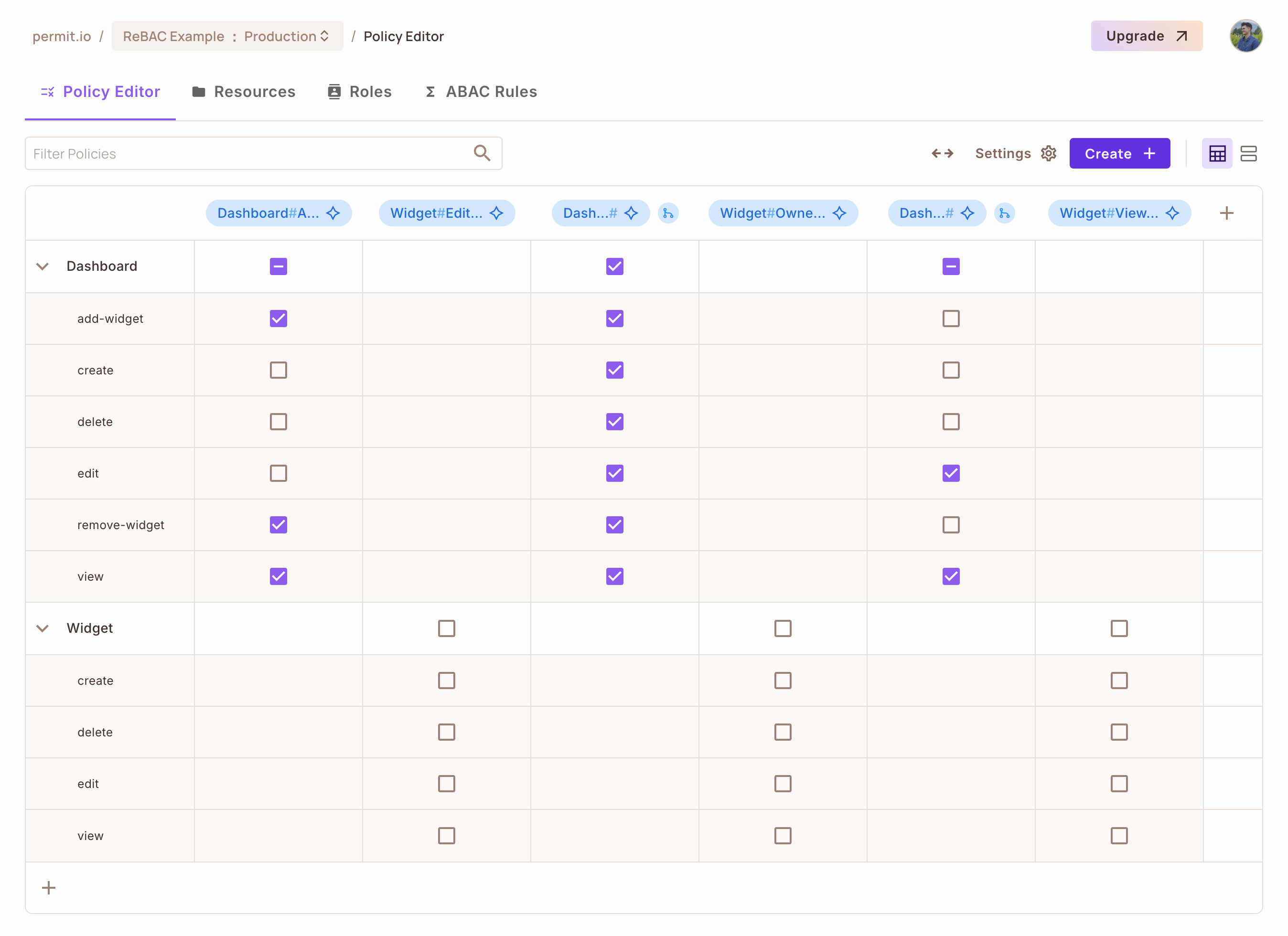
For the Widget resource:
-
Owner: Can
view,create,edit, anddelete. -
Viewer: Can only
view. -
Editor: Can
viewandedit.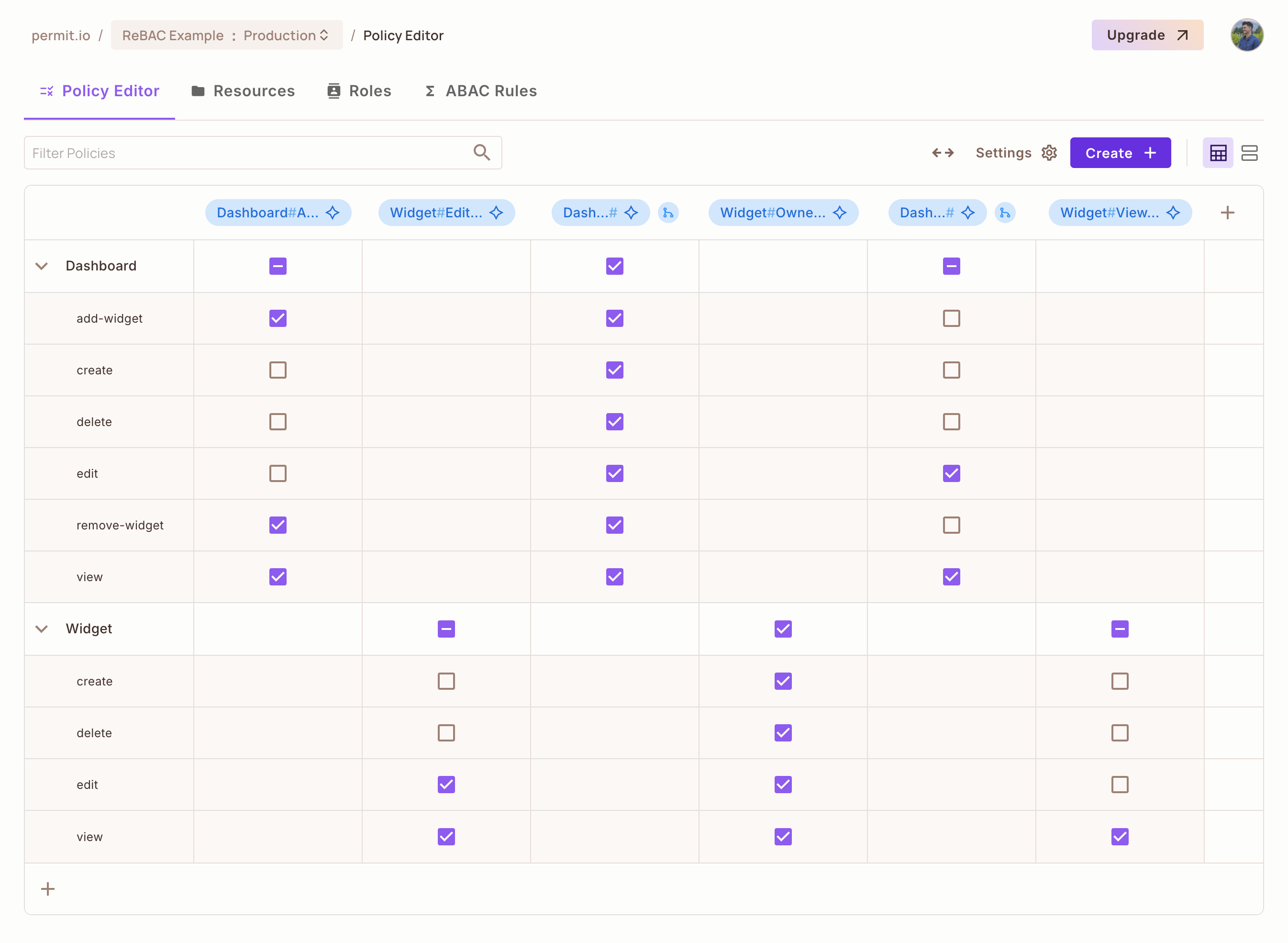
Once you assigned and saved your permissions, it's now time to test our policy and make sure it works.
Defining our ReBAC Policy - Data
We've completed defining the schema in the previous steps. Now, it's time to move on to defining the policy and the necessary data to enforce it.
Step 1: Testing our Policy
Create Users
We need access to test users to validate our policy and ensure a specific user complies with the defined rules.
Let's create two users:
John Smith- john@smith.comAnna Smith- anna@smith.com
They will have no top-level roles. We'll revisit the instance access section during the testing phase.
Create Resource Instances and their Relationship-Tuples
In this step, we will create an instance of the Widget resource called Data Consumption on a specific instance of Dashboard
resource called Data.
Navigate to Directory, click on Instances and click Add Resource Instance.
- Select the resource type as
Dashboard. - Pick your instance key unique identifier.
- Select the
defaulttenant. - Create your relationship. Select the
typefrom the dropdown list, and then fill in thesubjectandobjectinstance.
Dashboard Data is parent of Widget Data Consumption
Assign Roles
Let's assign an instance role to John Smith. We want John to be the owner of the data_consumption widget.
- Navigate to
DirectoryandAdd Instance Roles. - Scroll down, and give the user permissions per resource instance.
Widget:data_consumption#Owner
Test the Policy
We have now configured the whole ReBAC policy - and we have one last step left - which is testing if everything that we have configured works.
await permit.check(userId, action, {
  type: "member_group",
  key: "someKey",
  tenant: "someTenant",
});
As part of the permit.check() function, we will be passing in a few parameters. Use the following for testing:
userId: The unique ID of the user.action: The action to perform (e.g., assigning a member to a group).member_group:${data}: The resource targeted, dynamically referencing the data instance.
Now, let's use the provided snippet with out PDP to validate if the user can perform the declared action.
What's next? 🎉
- Assign roles and permissions to users and tenants
- Define and sync resource instances with attributes
- Set up relationship tuples for dynamic access control
You are now a master of ReBAC!